

To get anywhere on LinkedIn, you have to start by posting something. That might be a quick status update from your homepage, sharing a cool photo or video, or writing a longer text post. The secret, though, isn't just posting—it's creating value-driven content that actually gets people talking instead of just broadcasting your latest news.
Why Your LinkedIn Posts Aren't Getting Traction
Ever pour your heart and soul into a LinkedIn post only to be met with… crickets? A handful of likes, maybe one comment from a coworker. It’s frustrating, and you’re definitely not in this alone. The issue usually isn't your idea, but your whole approach to the platform.
Too many people treat LinkedIn like a digital resume they dust off when they're job hunting. But it’s a living, breathing content platform with a ridiculous amount of potential to build your influence and open doors. Staring at a post with zero engagement is a tough pill to swallow, but it's often just a sign that your content isn't clicking with how people actually use the platform.
The opportunity here is massive, mostly because so few people are actually creating content. LinkedIn has over 1 billion accounts, but only about 3 million users (a tiny 1%) share content every week. That small group generates a wild 9 billion weekly content impressions. It's a huge opening for anyone who figures out how to post effectively.
Moving From Updates to Conversations
Here's the fundamental mind shift you need to make: stop sharing updates and start sparking conversations.
An update is just announcing your company’s new product. A conversation starter is asking your network about the biggest challenges that new product could solve for them. See the difference? That simple tweak is what gets you real traction.
Think about where you're posting, too. A personal profile and a Company Page serve very different purposes.
- Personal profiles are your home base for building real relationships and sharing authentic, personal insights. People connect with other people, not logos, so your unique voice is your biggest asset here.
- Company Pages are the spot for establishing your brand's authority, dropping official announcements, and showing off your company culture.
Knowing when to use which is the first step toward a smarter content strategy. If your posts feel like you’re just shouting into an empty room, these 10 proven LinkedIn marketing strategies to stop yelling into the void can help turn things around.
The goal isn't just to be seen, but to be remembered and engaged with. Every post is a chance to reinforce your expertise, build your network, and create opportunities that don't exist on a resume.
To really nail this, you need a solid strategy—one with compelling hooks, the right hashtags, and a consistent schedule. A good starting point is finding the right topics and keywords. You might want to check out our guide on using a LinkedIn hashtag generator to find tags that are actually trending in your industry.
Once you shift your mindset from broadcasting to engaging, your LinkedIn presence will transform from a passive profile into an active, opportunity-generating machine.
A Practical Guide to Every LinkedIn Post Type
Alright, let's move from just talking about LinkedIn strategy to actually doing it. Knowing the theory is one thing, but mastering how to build out each specific type of post is what makes a real difference.
Each format on LinkedIn—from a simple text update to a slick document carousel—has its own quirks, strengths, and best use cases. Think of this section as your playbook for creating every kind of content that matters.
And the opportunity here is massive, mostly because so few people are actually creating content.
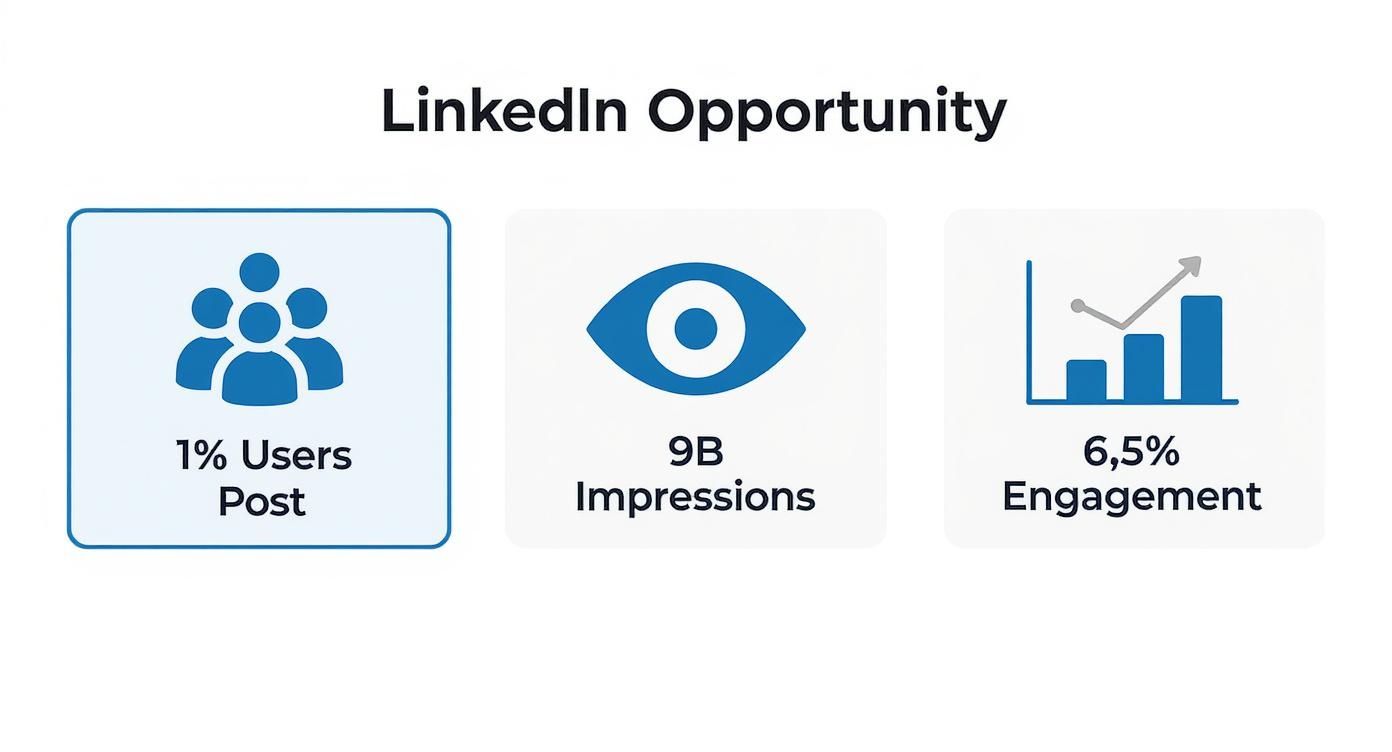
The numbers don't lie. A tiny fraction of users—just 1%—are generating 9 billion impressions a week. That’s a huge audience waiting for quality content. Nailing the post types below is how you join that top 1% and get your message seen.
Text-Only Posts: The Foundation of Engagement
Sometimes, the simplest approach is the most effective. Text-only posts are perfect for telling a story, asking a thought-provoking question, or sharing a quick insight. With no visuals, your words are the star of the show.
The key is to keep it readable. Write in short paragraphs (just one to three sentences is perfect) and use plenty of white space so people can scan it easily. Emojis can add a touch of personality, but don't overdo it—make sure they fit your professional brand.
Pro Tip: While LinkedIn gives you a 3,000-character limit, the sweet spot for a text post is around 1,300 characters. Shorter, punchier posts tend to perform better because they get right to the point.
Image Posts: Stop the Scroll
There's no better way to stop someone in their tracks mid-scroll than with a compelling visual. It’s a fact: LinkedIn posts with images get about twice the engagement of those without. This is your go-to format for sharing event photos, key stats from a report, or a behind-the-scenes look at your team.
For the best look, stick to these dimensions:
- Square: 1080 x 1080 pixels
- Portrait: 1080 x 1350 pixels
Using a tool like OneUp makes this a breeze. Its built-in Canva integration lets you design perfectly sized graphics right from the scheduling dashboard. You can also connect to royalty-free image libraries like Unsplash and Pixabay to find visuals without leaving the app.
Video Posts: Bringing Your Brand to Life
Video is king on LinkedIn for a reason. It drives incredible engagement and lets you connect with your audience in a way that text and images can't. Always upload your video directly to LinkedIn (native video) instead of just sharing a YouTube or Vimeo link; the algorithm will thank you for it.
Here are the specs to keep in mind:
- Length: 3 seconds to 10 minutes (but honestly, keep it under 90 seconds for the best results).
- File Size: Up to 5GB.
- Format: MP4 is your most reliable bet.
OneUp is super helpful here too. You can schedule video posts ahead of time and, more importantly, customize your video thumbnail. A great thumbnail can be the difference between someone scrolling past or clicking play—it's a small detail with a huge impact.
Document Posts: The Carousel Powerhouse
You've probably seen these—they're often called carousels. Document posts (which are just shared PDFs) are one of the best-performing formats on the platform right now. They let you share multi-page documents that people can swipe through, which is amazing for breaking down complex ideas, sharing presentations, or walking through a case study.
Imagine a consultant sharing a 5-page PDF on their framework for solving a common problem. Each slide pulls the reader in, encouraging them to swipe to the next. That "dwell time" signals to the LinkedIn algorithm that you're sharing valuable content. Just create your slides in Canva or PowerPoint, save as a PDF, and upload.
LinkedIn Polls: A Direct Line to Your Audience
Need some quick feedback or just want to stir up a conversation? Polls are your best friend. They're incredibly simple to create and give your audience an easy, low-effort way to engage with you.
A founder, for example, could run a poll asking which new feature their network is most excited about. You get instant engagement and valuable market research.
Just remember:
- You get up to four answer options.
- Polls can run for one day, three days, one week, or two weeks.
LinkedIn Articles: For When You Have More to Say
When a regular post just won't cut it, it's time for a LinkedIn Article. This is LinkedIn's own blogging platform, perfect for publishing long-form content that positions you as an expert in your field. Plus, these articles are indexed by search engines.
Use articles when you want to:
- Share deep industry analysis.
- Repurpose a popular post from your company's blog.
- Tell a detailed story or lay out a comprehensive case study.
Some of the most successful articles on LinkedIn are around 2,000 words and offer serious value. These aren’t just posts; they're content assets that can attract followers and opportunities for years. It's a major hub for professional activity, with over 101 job applications submitted every second and 69 million companies on the platform. Your deep-dive articles have a real shot at reaching decision-makers. You can check out more compelling LinkedIn statistics to see just how big the opportunity is.
Crafting Posts That Actually Start Conversations
Alright, knowing the different post types is one thing. But creating a post that actually gets a reaction? That’s a whole different ballgame.
An effective post doesn't just get a passing glance. It stops the scroll. It earns a reaction, a comment, a share—it kicks off a real conversation. This is where the magic happens on LinkedIn, turning a simple update into a genuine networking opportunity.
You don't need a massive overhaul to see a huge difference. A few small, deliberate tweaks to your writing and formatting can dramatically boost your post's visibility and engagement.
Let's break down the essential ingredients for a LinkedIn post that people can't ignore.
Hook Them In The First Two Lines
On LinkedIn, your audience only sees the first couple of lines of your post before they have to click "…see more." This makes your opening absolutely critical.
If you don't grab their attention right away, the rest of your brilliant insights might as well not exist. Your number one job is to create an irresistible "scroll stop."
Here are a few ways I’ve seen this work wonders:
- Ask a provocative question: "What's the single worst piece of career advice you've ever received?"
- State a bold or contrarian opinion: "Hot take: Most team-building exercises are a complete waste of time."
- Start with a relatable story: "I completely bombed my first big presentation. Here’s what I learned from the experience."
Think of that initial hook as your ticket to earning the click. Without it, you’re just hoping people are bored enough to expand your post.
Use Formatting for Readability
Nobody wants to tackle a giant wall of text, especially on a phone. Smart formatting makes your content scannable, inviting, and way easier to digest.
Break up your thoughts into short, punchy paragraphs—just a sentence or two is often perfect. Use white space generously. It gives your words room to breathe and makes the whole thing feel less intimidating.
Bullet points or numbered lists are your best friend for breaking down complex ideas. And don't be afraid of a few well-placed emojis; they can add personality and guide the reader's eye right where you want it to go.
Your post is an invitation for conversation. Formatting is how you make that invitation clear, welcoming, and easy to accept. Don't make your audience work to understand your point.
Master Hashtags and Tagging
Hashtags and tagging aren't just an afterthought—they are your primary tools for expanding reach and building community.
Hashtags: Think of these as topic labels that help LinkedIn categorize your content and serve it to people interested in those subjects.
- Stick to 3-5 relevant hashtags. Any more looks spammy.
- Mix it up. Use a combination of broad tags (like #marketing) with more niche ones (#b2bcontentstrategy) to hit different audiences.
- Skip the generic, overused tags like #success or #motivation. They're too saturated to do you any good.
Tagging: Mentioning other people (@username) or companies (@company-name) is a powerful way to pull them into the conversation. Tag a colleague you worked with on a project, a company whose product you love, or an expert whose article you're sharing. This sends them a direct notification, making it much more likely they'll engage and share your post with their own network.
Make Your Content Accessible With Alt Text
Accessibility isn't optional. Adding alternative text (alt text) to your images is a simple step that makes your content inclusive for people using screen readers. Bonus: it’s also good for SEO, giving search algorithms more context about what your visuals are showing.
When you upload an image, LinkedIn prompts you to add alt text. Don't skip it. Write a brief, clear sentence that describes what's in the picture. For instance, instead of just "chart," write "Bar chart showing a 25% increase in Q3 customer engagement."
Tools like OneUp make this a breeze by putting an alt text field right in the post composer. This helps you build the habit of making your content accessible every single time you schedule a post. And for those days when you're stuck, you can even use a dedicated LinkedIn post generator to help craft compelling and accessible content from scratch.
How to Automate Your LinkedIn Content with OneUp
Let's be real: posting on LinkedIn every single day is a grind. If you want to build any real influence, consistency is everything, but the daily cycle of creating, formatting, and hitting "publish" can completely drain your time and energy.
To scale up without burning out, you have to move past manual posting. This isn't about setting up robotic, soulless content. It’s about building a smart, efficient system that frees you up for the stuff that actually matters—like engaging with your network.
This is where a scheduling tool like OneUp completely changes the game. It turns that daily chore into a streamlined workflow that keeps your content flowing, even when you’re offline.
Get It All Done from a Single Dashboard
Picture this: you can manage your personal LinkedIn profile and your Company Page from one clean, organized dashboard. With OneUp, you can connect as many social accounts as you want, with no limits on the number of accounts you add. That means you can schedule everything for LinkedIn, Instagram, X, TikTok, and Facebook without juggling a dozen different browser tabs. For consultants, agencies, or anyone managing multiple brands, this is a lifesaver.
One of the slickest features for LinkedIn is the ability to schedule a first comment automatically. We've all heard that the algorithm can ding posts with external links in the main caption. With OneUp, you can craft your compelling, link-free post and have your link drop into the first comment the second the post goes live. It’s a simple trick that keeps your post looking clean and helps maximize its organic reach.
A Real-World Automation Scenario
Let's break down how this works in practice. Say a marketing consultant wants to batch a full month of LinkedIn content to build their authority and pull in some new clients.
Here’s their game plan using OneUp:
- Batch the Content: They block off a single morning to write 20 posts. It’s a mix of quick text-based insights, detailed case study carousels, and a few short video tips.
- Create the Visuals: Using the built-in Canva integration, they can design all the graphics for their image posts and carousel slides right inside the OneUp post editor. No more downloading and re-uploading files—it’s all seamless.
- Schedule and Repeat: They schedule the posts to go out at the best times over the next month. For some of their cornerstone content, like a post breaking down their core marketing framework, they use OneUp’s repeating post feature. They can set it to republish every 60 or 90 days, hitting new followers without lifting a finger.
Here's a look at the dashboard where they can see and manage everything at a glance.
The visual calendar gives a bird's-eye view of the entire month, making it easy to spot any gaps and ensure a consistent, strategic content flow.
Advanced Features for Posts That Pop
OneUp isn't just for basic scheduling. It has specific tools built to make your LinkedIn content perform better. You can easily schedule multi-image posts and document posts (carousels), which are absolute gold for engagement.
You can even customize video thumbnails—a small detail that makes a huge difference in getting people to actually click the play button on your videos. If you manage a team or clients, you can use the post-approval workflow to ensure everything is on-brand before it goes live, all from within OneUp.
LinkedIn has blown past 1 billion users globally, with roughly three new members joining every second. To reach even a tiny fraction of that massive audience, a smart automation strategy is essential. You can read up on LinkedIn's staggering growth to see just why it’s such a critical channel for professionals today.
Automation isn't about losing your authentic voice. It's about buying back the time you need to be more authentic in the comments and conversations where real connections are made.
Capture Ideas Before They Disappear
Great content ideas rarely show up on schedule. That's what makes the OneUp Chrome extension so useful. If our consultant stumbles upon a great industry article, they can click the extension, jot down a quick thought, and add it to their LinkedIn queue in seconds—all without leaving the webpage.
The iOS and Android apps are just as handy for managing content on the move. Whether you need to approve a post from a team member or schedule a sudden burst of inspiration, you can handle your entire content calendar from your phone.
This mix of powerful desktop features and mobile flexibility is what allows you to maintain an active, high-impact LinkedIn presence without being chained to your desk. If you’re ready to see how it all works, you can learn more about how OneUp streamlines social media management for busy professionals.
Using Analytics to Refine Your LinkedIn Strategy
Posting consistently is a huge win, but it’s only half the battle. If you aren't paying attention to what resonates with your audience, you're essentially just shouting into the void. A truly effective LinkedIn strategy is built on data, not assumptions. This is where diving into your analytics completely changes the game.
Think of your analytics dashboard as a direct feedback loop from your audience. It tells you exactly what they find interesting, what bores them, and when they’re most likely to be scrolling. Learning to read these signals is how you move from a scattergun approach to a precision-guided strategy that actually delivers.
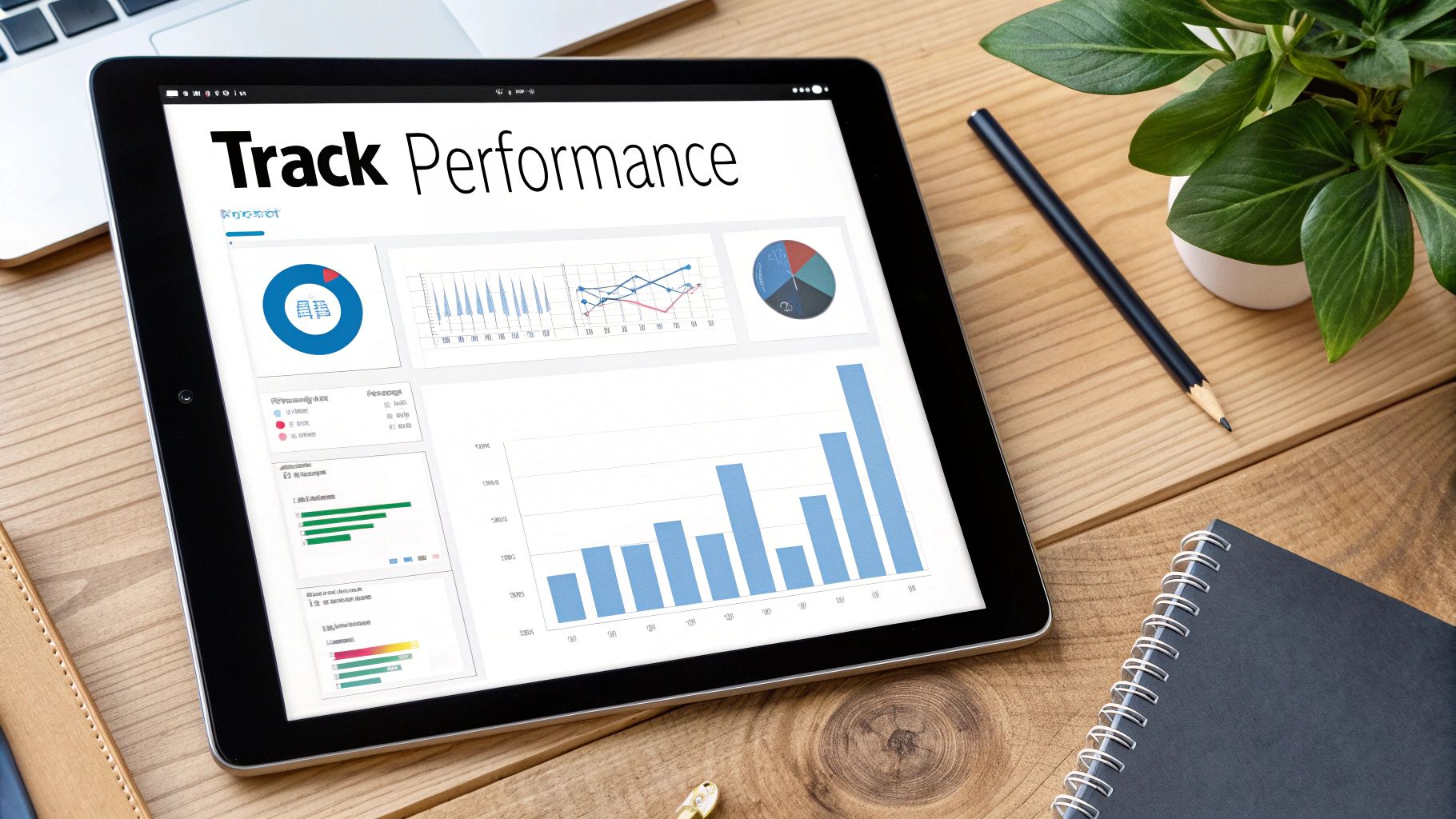
Decoding Your Key Metrics
When you first open your analytics, the numbers can feel a bit overwhelming. Let’s cut through the noise and break down the metrics that truly matter for both your personal profile and Company Page.
- Impressions: This is simply the total number of times your post was shown to users. High impressions mean your content is getting good initial reach, but it doesn't tell you if people actually cared.
- Engagement Rate: This is your holy grail metric. It’s calculated by dividing all your engagements (likes, comments, shares, clicks) by your total impressions. This tells you what percentage of people who saw your post actually interacted with it. A high engagement rate is a huge signal that your content is hitting the mark.
- Follower Demographics: Who is actually following you? LinkedIn analytics can show you their job titles, industries, and locations. This is invaluable for making sure you’re attracting the right crowd.
Tracking analytics isn't just about celebrating vanity metrics. It's about gathering intelligence to create content that serves your audience better, which in turn serves your professional goals.
Turning Data Into Actionable Insights
Knowing the numbers is one thing; using them is what separates the pros from the amateurs. A simple monthly content audit can give you a crystal-clear roadmap for what to create next.
For example, after reviewing your last 30 days of posts, you might discover that your short video tips have a 50% higher engagement rate than your text-only posts. The clear takeaway? Double down on creating more videos.
Or maybe you notice that posts published at 9 AM on Tuesdays consistently get the most impressions. Boom. That’s your new prime-time posting slot.
While LinkedIn provides solid native analytics, using a tool like OneUp gives you a much more centralized view. OneUp's summary and post-level analytics let you quickly compare performance across different networks, not just LinkedIn.
You can generate custom, white-labeled, cross-network reports to see the bigger picture and even schedule automated email reports to keep your team or stakeholders in the loop without any extra work. This integrated approach saves a ton of time and makes it way easier to spot trends across your entire content strategy.
Common Questions About Posting on LinkedIn
Even with a killer strategy, you're bound to run into some practical questions once you start posting consistently on LinkedIn. Getting a handle on these little details can save you from common mistakes that throttle your reach. Let's dig into some of the questions I hear all the time.
How Often Should I Post on LinkedIn?
Here's the deal: consistency beats frequency, every single time. For most of us, hitting 3-5 high-quality posts per week is the sweet spot. That’s enough to stay on your network's radar without completely flooding their feeds.
The most critical piece of advice I can give is to find a rhythm you can actually stick with. It's way better to publish three fantastic posts every single week than to go hard with daily posts for two weeks and then vanish.
A steady presence builds trust and keeps you top-of-mind. If you post sporadically, the algorithm—and your audience—won't know what to expect, and you'll lose all that hard-earned momentum.
This is exactly where automation becomes your secret weapon. Using a tool like OneUp lets you batch-schedule your content. You can carve out an hour or two once a week, get all your posts queued up, and know that you have a consistent stream of value going out, even when you're swamped. The repeating post feature in OneUp is a game-changer for evergreen content, letting you automatically republish your best stuff at whatever interval you choose.
What Is the Best Way to Reshare a Post?
Whatever you do, don't just hit the native "Repost" button. The algorithm tends to bury these, giving them almost no reach. A much smarter move is to use the "Repost with your thoughts" option.
Doing this turns a simple share into a brand-new piece of content. You get to add your own commentary, offer a different take, or explain why the original post caught your eye. Pose a new question to your followers or tag the original creator with a thoughtful compliment. This adds genuine value, showcases your expertise, and kicks off a completely fresh conversation.
Can I Edit a LinkedIn Post After Publishing?
Yes, you can—but with a major catch. You can easily edit the text of your post after it's live. Just click the three-dot menu (…) on your post and select "Edit post." It's perfect for fixing a quick typo or rephrasing a sentence for clarity.
Here's the limitation, though: you cannot change or add any media like images, videos, or documents once it's published. If you spot a mistake in your carousel or video, your only option is to delete the entire post and start over. This is a huge reason to triple-check everything before you hit that publish or schedule button.
Ready to stop guessing and start scheduling your LinkedIn content like a pro? OneUp gives you all the tools you need—from scheduling carousels and first comments to repeating posts and analyzing performance—all in one place. Take control of your content strategy and start building a powerful presence on LinkedIn today. Get started with OneUp.