
Look, scheduling your YouTube videos isn't just some neat trick to save a few minutes. It's a core part of a winning channel strategy, and honestly, it’s what separates the amateurs from the pros.
At its most basic, you just upload your video to YouTube Studio, fill out all the details, and when you get to the 'Visibility' screen, you hit 'Schedule' instead of 'Publish'. Pick a date and time, and you're set.
But let's get real—the why is so much more important than the how.
Why Smart Scheduling Is a YouTube Growth Superpower
Treating your YouTube channel like a real media outlet starts with a schedule. It’s about building a reliable, professional brand that both your audience and the algorithm can count on. When you're consistent, YouTube's algorithm tends to notice, rewarding channels that reliably deliver content.
This consistency is how you turn random viewers into a loyal community. If your audience knows you drop a new video every Friday at 4 PM, they start to build their routine around you. That’s how you get die-hard fans who show up the minute a new video goes live.
Before we dig deeper, let's quickly break down the main reasons you need to start scheduling your content today.
Key Benefits of Scheduling Your YouTube Content
Here’s a quick look at how a simple scheduling habit can transform your channel's performance.
| Benefit | Impact on Your Channel |
|---|---|
| Algorithmic Favor | YouTube's algorithm rewards consistent upload patterns with better visibility and recommendations. |
| Audience Loyalty | A predictable schedule builds viewing habits and turns casual viewers into a dedicated community. |
| Global Reach | Schedule videos to go live during peak viewing times in different time zones, not just your own. |
| Professionalism | Easily coordinate video launches with brand partnerships, marketing campaigns, and promotions. |
| Creator Sanity | Batch your work and get ahead, freeing up your time to focus on creating instead of just publishing. |
As you can see, the benefits go way beyond simple convenience. It’s a strategic move that pays off in growth and engagement.
Cultivating a Professional and Global Presence
A solid schedule also makes you look like you have your act together—because you do. It's a game-changer for collaborations. Imagine you have a sponsored video; you can perfectly time its release to match a brand's campaign launch. No more last-minute scrambles.
Tools like OneUp even let you create a shareable, read-only calendar link. This is perfect for keeping clients and partners in the loop on your content plan without giving them the keys to your channel. It’s a simple but powerful feature for professional collaboration.
More importantly, scheduling lets you think globally. Don't just post when it's convenient for you. Figure out where your audience is and schedule your videos to drop when they're online and ready to watch.
This global mindset is absolutely critical. With nearly 65% of YouTube watch time happening on mobile devices, you have to think about when people around the world are pulling out their phones. Ignoring global mobile usage peaks means you're leaving a massive chunk of your potential audience behind.
A consistent schedule is the foundation for everything else you do to grow. For example, as you explore different strategies to monetize YouTube Shorts, you'll find that regular, scheduled content drops are essential for maximizing your channel's earning potential.
Before you even think about third-party tools, you have to get your hands dirty with YouTube’s own scheduler. Honestly, for a lot of creators, the native scheduler inside YouTube Studio is all you’ll ever need. It’s baked right into the upload process and gives you total control over when your content drops.
You don’t need any extra software to make this work. It’s a seamless part of the normal upload flow, so if you’ve uploaded a video before, you’re already halfway there. Just grab your finished video file and you’re good to go.
The Upload and Scheduling Workflow
First things first, sign into your YouTube Studio account. In the top-right corner, you’ll see that big “Create” button—give it a click and select “Upload videos.” Then, just drag and drop your video file or browse your computer to find it.
While your video is uploading and processing, YouTube walks you through a few tabs: Details, Video elements, Checks, and the one we care about, Visibility. The "Details" tab is your bread and butter for SEO—this is where you’ll add your title, description, and tags, and of course, upload that killer custom thumbnail.
Here’s the main dashboard you’ll see when you log in. The "Create" button is your starting point for everything.
The real action for scheduling happens on the final “Visibility” tab. This is the last stop before your video is officially in the queue. You’ll be presented with a few options, but we’re focused on "Schedule."
Getting Your Visibility Options Straight
Choosing the right visibility setting is a bigger deal than you might think. A wrong click can mean your video goes live to crickets or, worse, launches before you’re ready.
Here's the breakdown:
- Private: This is for your eyes only (and anyone you invite via email). It's perfect for team reviews, showing a client a draft, or just using YouTube as a personal video locker.
- Unlisted: Anyone with the link can watch, but it won’t pop up in search, on your channel, or in your subscribers' feeds. Think of it as semi-private—great for sharing webinar replays or portfolio pieces.
- Schedule: This is our goal. It keeps your video private until the exact date and time you pick. Then, boom—it goes public automatically.
Once you hit "Schedule," you'll get a calendar and a time-picker. You can set it to go live at any point in the future, right down to the minute. A helpful touch is that YouTube automatically shows the time in your local time zone, which takes some of the guesswork out of it.
Build Hype with a Premiere
Tucked away in the scheduling options is a little checkbox that packs a big punch: “Set as Premiere.” Don’t ignore this. A Premiere turns your video launch from a simple upload into a live event, creating a shared viewing experience that drives a ton of immediate engagement.
Here’s what happens when you set a video as a Premiere:
- A public watch page for the video is created instantly, complete with a countdown timer.
- Subscribers can get a notification telling them about your upcoming Premiere.
- You and your audience can hang out in a live chat before and during the video's debut.
The Premiere feature is a game-changer for a video’s initial performance. That live chat creates a real sense of community and urgency, getting viewers to comment and react together. All that early activity is a huge positive signal to the YouTube algorithm and can really help your video’s reach in those critical first 24-48 hours.
After you’ve scheduled it, your video will show up in the "Content" tab of your Studio with a "Scheduled" label next to it. If you have a last-minute change of heart or notice a typo, no sweat. Just click the pencil icon to edit the title, description, or even reschedule it for a totally different time. You have complete flexibility without having to re-upload a thing.
Automating Your Channel With a Third-Party Scheduler
Let's be honest: YouTube Studio's native scheduler is fine when you're just starting out. But once you're managing a serious content pipeline—especially if you're juggling multiple channels or handling client work—you'll hit its limits fast.
This is where third-party schedulers come in and completely change the game. Tools like OneUp are built for the heavy lifting that creators, agencies, and brands deal with every day. They turn a simple scheduling queue into a powerful, scalable content engine.
At a high level, the core process doesn't change. You still upload your video, add the details, and pick a time.
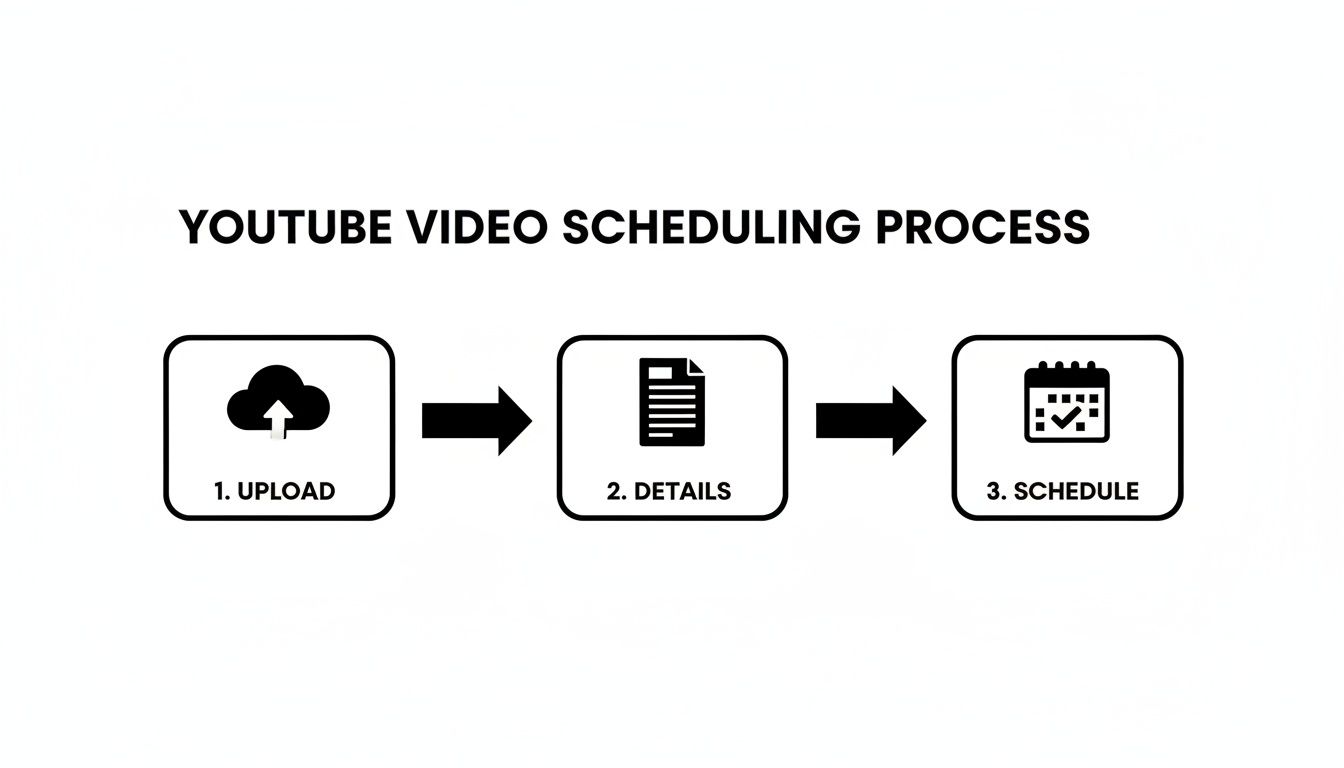
The difference isn't in what you do, but in the power and efficiency you have at each step.
Moving Beyond Single-Video Scheduling
The biggest mental shift you'll make with a dedicated scheduler is thinking in batches instead of one video at a time. This is a massive productivity booster. Forget scheduling videos one-by-one; now you can plan, upload, and schedule an entire month's worth of content in a single afternoon.
This approach is a lifesaver for maintaining consistency. Your channel never goes dark, even when you're on vacation or deep in the creative cave working on your next big video series.
Bulk scheduling is where this really shines. OneUp, for example, lets you upload and schedule hundreds of social media posts at once—including YouTube videos—from a single CSV file, a Google Drive folder, or even an RSS feed. Imagine you're an agency managing 12 different client channels. This feature alone could save you dozens of hours every single month.
Unlocking Features YouTube Studio Lacks
It’s not just about bulk actions. Third-party tools are packed with unique features that open up entirely new strategic possibilities. Many of these are designed to solve the nagging, everyday problems creators run into.
Here are a few game-changers you’ll find in a tool like OneUp:
- Automatic Post Recycling: Have a killer piece of evergreen content, like a foundational tutorial or a brand intro? You can set it to automatically repost every few months or on a custom schedule. This keeps your best work in front of new subscribers with zero manual effort.
- Direct Canva Integration: Need a thumbnail, like, right now? The built-in Canva button lets you design and attach a custom thumbnail directly inside the scheduler. No more jumping between tabs, downloading files, and re-uploading.
- Cross-Platform Management: Your YouTube video is just one piece of the puzzle. From a single dashboard, you can schedule your video to go live and at the same time create and schedule all the promotional posts for it across Instagram, X (Twitter), Facebook, Pinterest, LinkedIn, and even your Google Business Profile.
To see just how much more you can do with a dedicated tool, here's a quick comparison.
YouTube Studio vs OneUp Scheduling Capabilities
| Feature | YouTube Studio | OneUp |
|---|---|---|
| Bulk Scheduling | ❌ | ✅ (Upload via CSV, Google Drive, or RSS feed) |
| Post Recycling | ❌ | ✅ (Automatically repost evergreen content) |
| Direct Canva Integration | ❌ | ✅ (Design thumbnails inside the scheduler) |
| Cross-Platform Posting | ❌ | ✅ (Schedule to YouTube, Instagram, X, FB, etc., from one place) |
| Account Grouping | ❌ | ✅ (Organize client channels and social profiles into categories) |
| Post Templates | ❌ | ✅ (Save time with pre-filled descriptions) |
| Team Collaboration | Basic | ✅ (Granular permissions and read-only approval links) |
The table makes it clear: while YouTube Studio handles the basics, a tool like OneUp is built for a professional workflow that demands efficiency, organization, and advanced strategic options.
Centralizing Your Content Universe
Managing one YouTube channel is one thing. Managing three channels, plus all their associated social media profiles, is a recipe for chaos. A centralized scheduler brings order to that chaos.
With OneUp, you can group all related social accounts into categories. An agency, for instance, can create a separate category for each client, keeping their YouTube channel, Google Business Profile, and Instagram account neatly organized. This simple feature helps prevent the dreaded mistake of posting the wrong content to the wrong channel.
The ability to manage multiple brands from a single login is non-negotiable for professionals. It’s not just about convenience; it’s about risk management, workflow efficiency, and maintaining a clear overview of all your content commitments.
This also makes collaboration a breeze. You can add team members and give them specific access only to the account categories they need. Need a client to sign off on the content calendar? Just send them a read-only calendar link. They can review and approve everything without ever gaining access to post or edit.
Templating for Speed and Consistency
Finally, let's talk about descriptions. Writing a unique, optimized description for every single video is a grind. Schedulers solve this with post templates or custom fields.
You can create a template that pre-populates your description with all the standard stuff:
- Links to your website and social profiles
- Affiliate disclosures
- A call-to-action to subscribe
- Links to important playlists
When you schedule a new video, this template is automatically applied. All you have to do is write the unique part of the description for that specific video. OneUp also has a unique "Auto-generate text from link" feature, where it can pull metadata from a blog post link to instantly create a post draft for social media promotion.
Finding the Perfect Time to Publish Your Videos
Okay, so scheduling a video is one piece of the puzzle. But scheduling it for the perfect moment? That’s how you get a head start with the algorithm.
When you time your release to match when your audience is most active, you can seriously boost a video's initial velocity. Think of it as launching a boat with the tide instead of against it. More early views send a powerful signal to YouTube that your content is worth pushing to a wider audience.
The best data for this isn't some generic industry report you find online—it's your own. You have to become an expert on your unique audience.
Dive Into Your Channel Analytics
Your first stop should always be the "When your viewers are on YouTube" report. You can find this goldmine in the Audience tab of your YouTube Analytics. This chart is a simple heat map that shows you the exact days and hours your viewers were most active over the past 28 days.
Look for the darkest purple bars. Those are your prime-time slots, the hours when the most people who already watch your stuff are online and ready for more. Don't just glance at it; really study the patterns. Do you see a consistent spike every weekday afternoon? Is Saturday morning your channel's sweet spot?
A great strategy is to schedule your video to go live an hour or two before these peak times. This gives YouTube's systems a chance to index the video and for it to start picking up a little steam right as your core audience starts logging on.
Pinpointing your channel's unique peak hours is non-negotiable. General advice is a decent starting point, but nothing beats data pulled directly from the people who actually watch your videos. That analytics report is the closest thing you have to a crystal ball.
Timing for Different Types of Content
Not all videos are watched the same way, so why would you publish them at the same time? Think about the mindset and context of your viewer.
- Long-Form Videos (10+ minutes): These require a real commitment. Most people save longer videos for when they have uninterrupted time, like evenings after work or lazy weekend afternoons. Try scheduling these for an early afternoon slot, maybe 2-4 PM, so they can build momentum before the evening viewing rush.
- YouTube Shorts: These are built for quick hits and mindless scrolling. They perform incredibly well during commute times, lunch breaks, and those late-night sessions when people are just killing time on their phones.
This approach means you're not just publishing when people are online, but when they’re in the right frame of mind for the specific content you're putting out.
Don't Ignore the General Best Practices
While your own analytics are king, industry-wide data provides a solid baseline, especially if your channel is new and doesn't have much history yet.
Consistently uploading at the same days and times really does improve early-view velocity, helping the algorithm show your videos to more people. Multiple analyses show that publishing on weekdays between 3:00–5:00 PM local time is a reliable window to catch people as they wind down from their workday. These slots often produce higher median views. In fact, as you can discover in more detail from Sprout Social's research, the single highest median-view slot for many channels was found to be Wednesday at 4:00 PM.
Ultimately, finding the perfect time is a constant process of testing and tweaking. Start with the general advice, then use your own analytics to fine-tune your schedule. Test different days and times, see what happens, and slowly zero in on what works best for your audience.
Your Essential Pre-Publishing Checklist
Hitting "schedule" is the easy part. But making sure your video is actually ready to succeed the second it goes live? That takes a final quality check.
Think of this as your pre-flight checklist before launching your content. A few extra minutes of optimization can make a huge difference in whether your video gets discovered and keeps people watching.
Before you do anything else, you have to lock in your SEO foundation. This isn't just about cramming in keywords; it’s about making your video easily findable by both YouTube's algorithm and the exact people you want to reach.
This final once-over makes sure every piece is working together to grab attention and drive views from the moment your scheduled video is published.
Optimizing Your Video's Metadata
Your video’s title, description, and tags are the main signals you send to YouTube about what your content is about. For anyone serious about learning how to schedule YouTube videos that actually perform, getting this right is non-negotiable.
- SEO-Driven Title: Is your title both compelling and keyword-rich? It needs to accurately reflect the video's content while making someone curious enough to click. A great title usually answers a question or promises a clear solution.
- Compelling Description: Don't just toss in a sentence or two. Write a detailed description that includes your main keyword in the first couple of lines. Add relevant links and, if it makes sense, timestamps to create video chapters that help viewers find what they need. Tools like a YouTube post generator can help you whip up descriptions that tick all the right boxes.
- Strategic Tags: They're not as crucial as they used to be, but tags still help YouTube understand the context of your video. Use a solid mix of broad and specific tags that are directly related to your topic.
Think of this metadata as your first and best chance to tell the algorithm exactly who should be seeing your video.
Enhancing the Viewer Experience
Beyond the text, a few visual and accessibility elements can seriously improve how people interact with your content. A great thumbnail gets the click, sure, but these next few things are what keep them watching and tell them where to go next.
A high-contrast, emotionally resonant thumbnail is your video's billboard. It needs to stand out in a sea of other options and communicate the video's value in a single glance. If it doesn't beg to be clicked, your other optimization efforts won't matter.
Take a second to think about your video's length, too. We’ve seen that long-form videos tend to do best with evening publish times when viewers have more time to settle in. The sweet spot for a lot of long-form content is between 7–15 minutes, with the platform average sitting around 11.7 minutes in 2025.
Here are the last few items for your checklist:
- End Screens and Cards: Have you set up cards to point viewers to related videos or playlists? Is your end screen set up to encourage subscriptions or guide people to another one of your videos?
- Closed Captions (SRT Files): Uploading your own SRT file for captions is way more accurate than YouTube’s auto-generated ones. This not only makes your content more accessible but also gives YouTube a full transcript of your video to index for search. Win-win.
Common YouTube Scheduling Questions Answered
Even with the best tools, you're bound to have questions when you first start scheduling YouTube videos. From fixing a last-minute typo to making sense of time zones, let's clear up some of the most common things creators run into.
A classic "uh-oh" moment for any creator: you’ve scheduled a video and immediately spot a mistake. Can you fix it? The answer is yes, absolutely. Both YouTube Studio and third-party tools give you the flexibility to edit a scheduled video right up until it goes live.
You can easily hop back in to change the title, add a forgotten link to the description, swap out the thumbnail, or even push the publish date back. It’s a total lifesaver for catching those small errors or shifting your content calendar around to react to breaking news.
Does Scheduling Affect Video Views?
This is a big one. Many creators worry that scheduling a video might hurt its performance with the algorithm. Let's put that myth to rest: no, scheduling does not hurt your views. The YouTube algorithm couldn’t care less if you published a video manually or scheduled it ahead of time.
In fact, it’s usually the opposite. Scheduling is a strategic advantage. It lets you drop your video precisely when your audience is most active and ready to watch. Nailing that timing gives your video a strong initial push, which sends all the right signals to the algorithm.
The act of scheduling is neutral; it's the timing you choose that influences performance. A well-timed scheduled video will almost always outperform a randomly published one because it meets your audience when they are already active and looking for content.
Can I Schedule YouTube Shorts?
You bet. The process for scheduling YouTube Shorts is exactly the same as for your regular, long-form videos. Whether you're in YouTube Studio or using a scheduler like OneUp, you just upload your vertical video (that’s under 60 seconds) and follow the exact same steps.
Just fill in your title and description, then head to the visibility tab and pick your date and time. This makes it super easy to mix Shorts into your content strategy without having to learn a whole new workflow.
Editing Scheduled Posts on OneUp
If you’re using a dedicated scheduler like OneUp, editing is just as simple. You can pop into your calendar view or post queue, click on any scheduled YouTube video, and make your changes.
The real power here is when you’re managing a full campaign across multiple platforms. You can tweak the YouTube video’s description and, in the same breath, adjust the promotional posts for X (Twitter) or Facebook that are set to go out with it. It keeps everything consistent. Plus, OneUp's AI Assistant can help you generate post text and hashtags, and if you're ever stuck, check out its handy YouTube hashtag generator for some quick inspiration.
Understanding Time Zone Settings
Time zones can be tricky, but YouTube Studio keeps it simple by always showing the schedule in your local time zone. The time you see is based on your computer’s clock.
Third-party tools often give you more control. OneUp, for example, lets you set a default time zone for your whole account, which is perfect for teams spread across different regions. Some platforms even let you set unique time zones for specific social accounts—a must-have if your channel targets audiences in different countries.
Always double-check which time zone your tool is using. The goal is to post during your audience's peak hours, not your own.
Ready to get your content calendar under control and put your YouTube growth on autopilot? OneUp has everything you need—from bulk scheduling and post recycling to a unified social inbox—to manage your channel like a pro. Start your free trial of OneUp today and see the difference.