If you know of any other large Facebook groups that should be on the list, let us know in the comments. (Must have OVER 1 million members)
Need a way to schedule posts to multiple Facebook Pages at the same time?
OneUp is a social media scheduling tool that supports posting to Facebook Pages, Instagram, X, LinkedIn, Threads, Bluesky, Reddit, Snapchat, Pinterest, TikTok, YouTube, and schedule Google My Business posts.
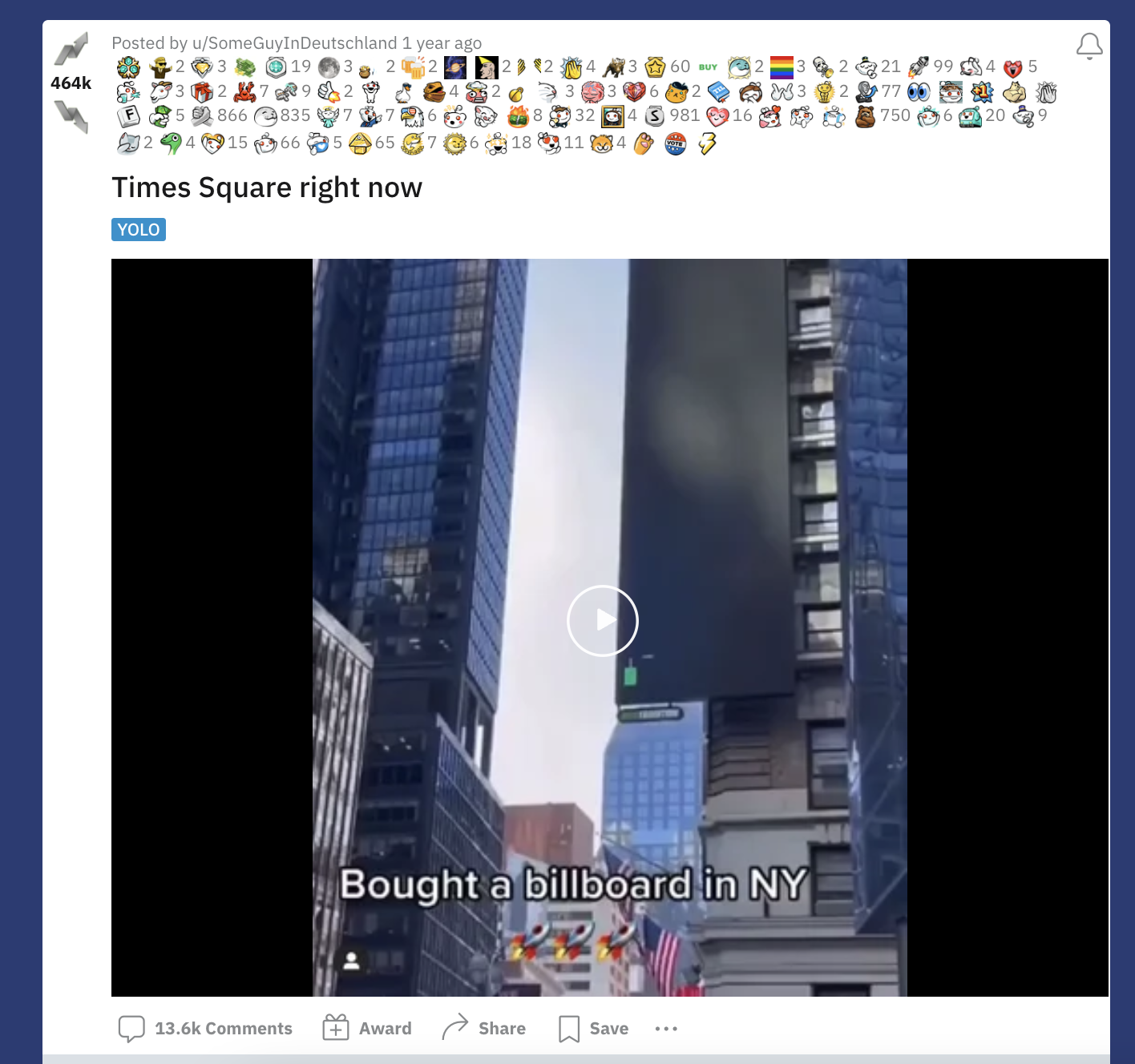
Before Rick Astley dethroned it in June 2020, this used to be the most upvoted post on Reddit for years:
It was posted on Reddit on April 1st, 2017 by u/serventofgaben in the r/movies subreddit, and became the most upvoted Reddit post of all time, holding on to the #1 spot on Reddit for years.
However, you won’t be able to see it if you sort by top posts of all time on r/all, because some user accidentally deleted the image on Imgur. Here’s the thread on the subreddit r/TIFU where that user explains how he accidentally deleted it.
That Reddit post itself has gone on to receive over 41,000 upvotes.
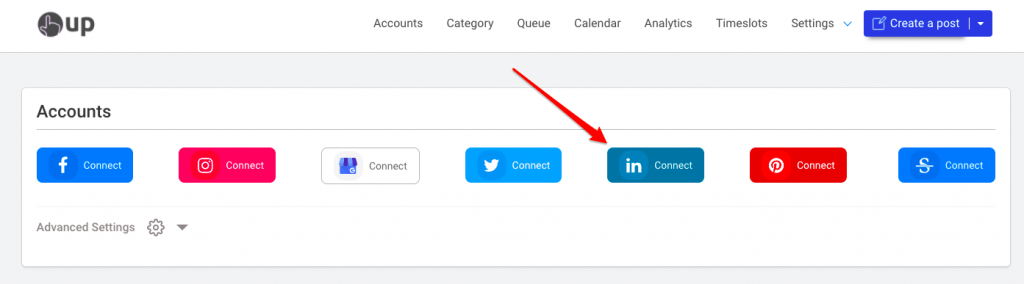
Go to OneUp and Connect your LinkedIn account(s) (you can connect both personal profiles and company pages)
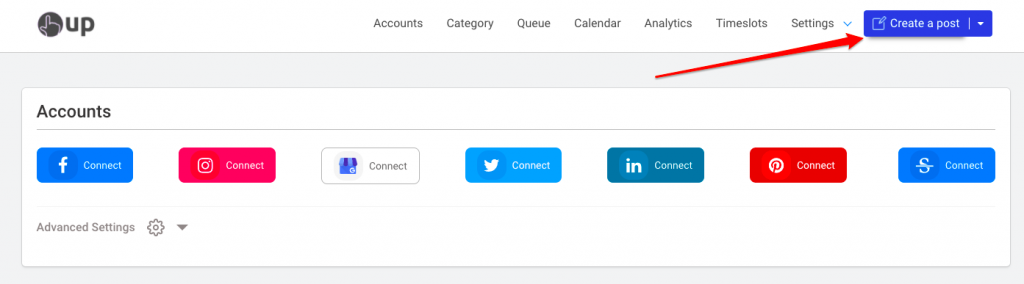
Next click on the “Create a post” button
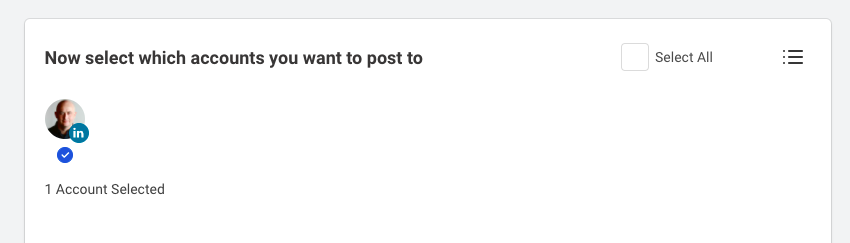
Choose which LinkedIn company pages or personal profiles you want to post to
Create your post, and optionally add a link preview, image, GIF, video, or PDF attachment
Add a First Comment (if you want)
Select for it to post once, or choose to have the post repeat
Choose to either Post Now, or you can schedule your LinkedIn post for a date and time in the future
Here are some screenshots explaining the steps above
In OneUp, go to the Accounts page and connect your LinkedIn account(s). You can connect both LinkedIn personal profiles and company pages.
The next step is to click the “Create a post” button:
Once on the Create A Post page, select which LinkedIn accounts you’d like to publish this post to. If you have more than one LinkedIn account, you can choose to post to multiple personal profiles and company pages at the same time.
Then type in or paste in your LinkedIn post, and optionally add a link preview, image, GIF, or video to your post.
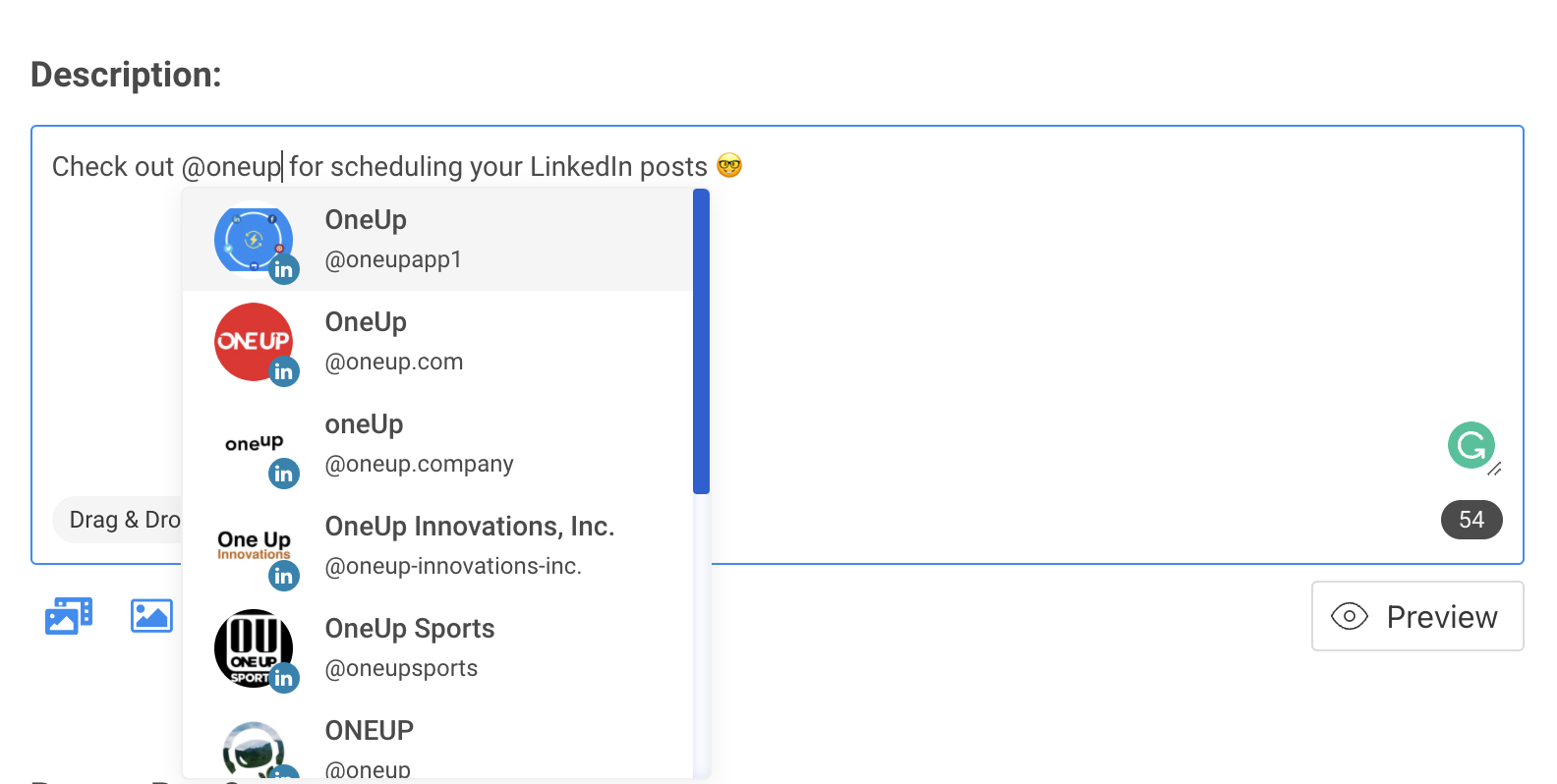
You can also @tag any company page or personal profile in the text box:
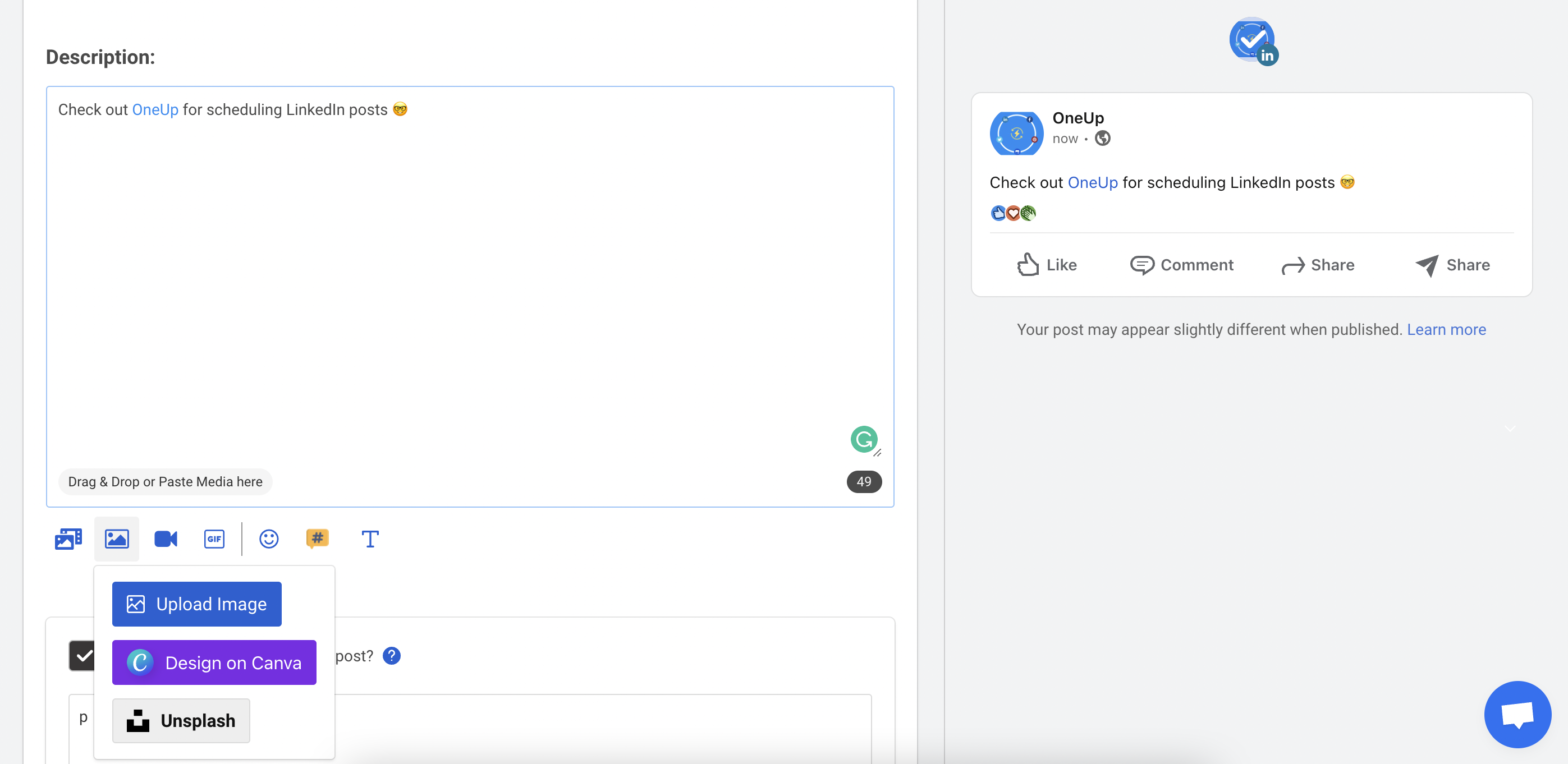
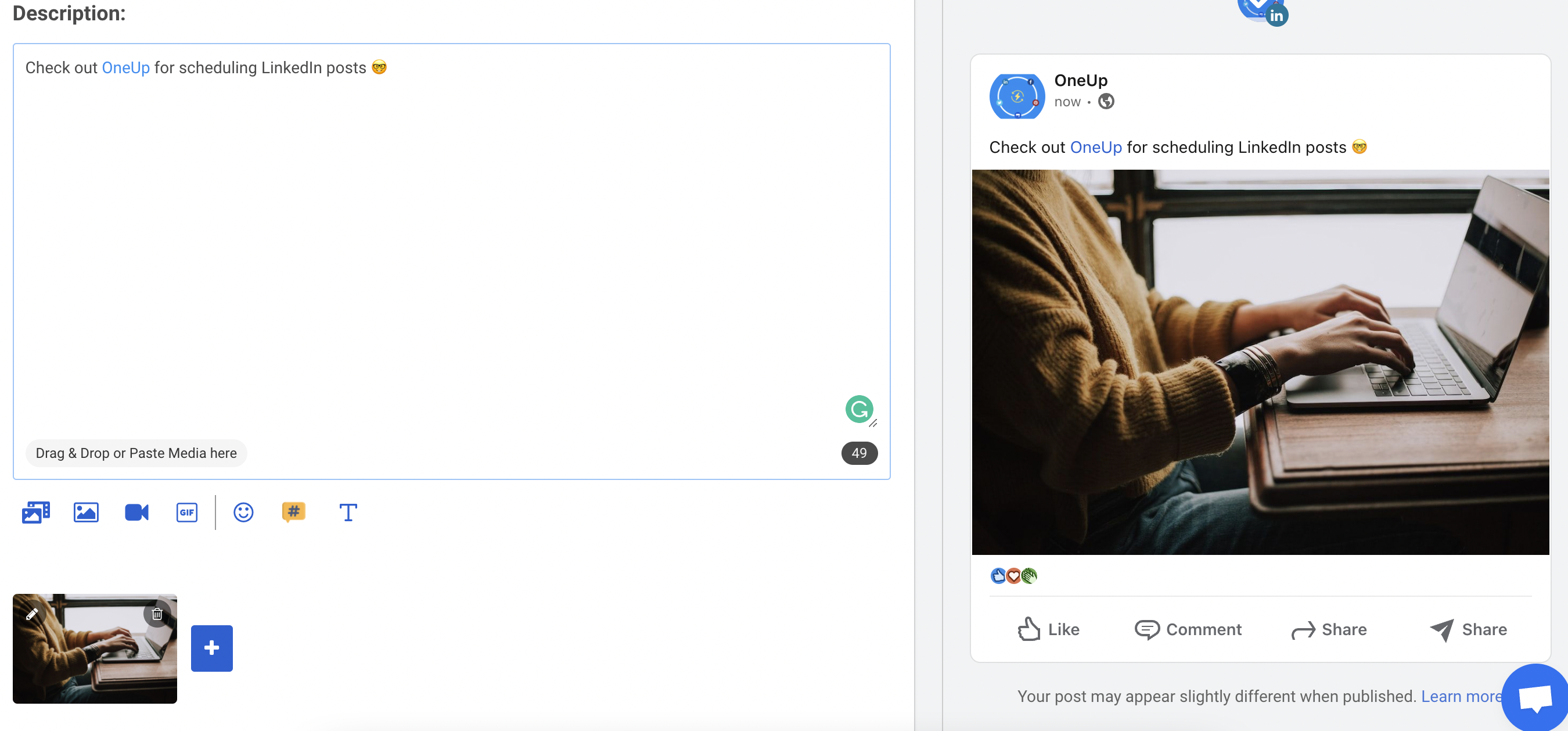
OneUp allows you to add photos, GIFs, or videos directly from your computer, or you can create an image in OneUp’s Canva integration, or choose a professional photo from the Pexels, Pixabay, or Unsplash integration:
Just like on LinkedIn itself, OneUp allows you to add up to 9 images for LinkedIn posts. Document attachments are supported as well.
While you are creating your LinkedIn post in OneUp, you will see a preview of how your post will look once published on LinkedIn:
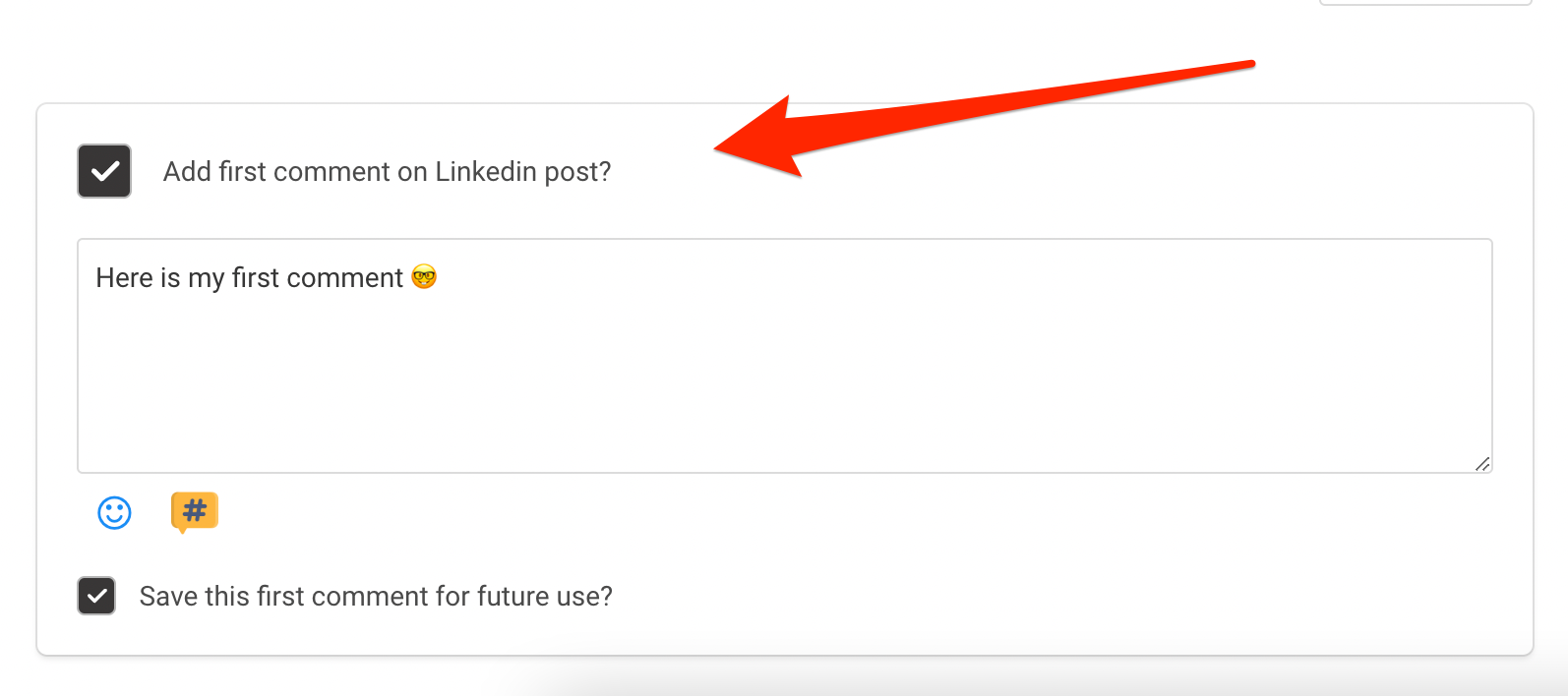
Then choose whether you’d like to add a First Comment on your LinkedIn post:
If you add a First Comment, it will automatically be added as the first comment on your post whenever the post gets published.
When your post is good to go, in OneUp you can choose to either post it once, or have the post repeat automatically at whatever interval you choose
Example: This LinkedIn post is scheduled to repeat every three weeks.
Then choose to either Post Now, schedule your LinkedIn post for the future, or you can add it to your Drafts, where it will be saved for later.
In addition to LinkedIn, OneUp also supports Twitter, Facebook, Instagram, Snapchat, Reddit, Bluesky, Threads, YouTube, Pinterest, TikTok, and Google My Business.
Does OneUp support multi-image posts to LinkedIn? Yes, OneUp allows you to add up to 9 images on each LinkedIn post.
Does OneUp support tagging/mentioning in LinkedIn posts? Yes, you can tag any LinkedIn company page or personal profile in OneUp by typing “@” and then the company page name.
Does OneUp support video posts to LinkedIn? Yes, OneUp supports video posts to both LinkedIn personal profiles and company pages. Videos will post to both LinkedIn company pages and personal profiles as a native video (meaning it looks the same as if you posted directly from LinkedIn, and it will autoplay).
Does OneUp support adding a First Comment on LinkedIn posts? Yes, you can add a First Comment on your scheduled LinkedIn posts with OneUp.
Does OneUp support document attachments on LinkedIn posts? Yes, OneUp supports document attachments on LinkedIn posts.
Is there a size limit on videos posts by OneUp? OneUp supports videos up to 200MB.
Does OneUp support GIF posts to LinkedIn? Yes, OneUp supports GIF posts to both LinkedIn company pages and personal profiles. There is no size limit for GIFs
Does OneUp support hashtags on LinkedIn? Yes, OneUp supports hashtags in LinkedIn posts.
Does OneUp support scheduling LinkedIn Articles? No, unfortunately LinkedIn’s API does not allow scheduling tools to schedule Articles, only regular posts are supported.
Here is a one-minute video showing how to schedule Linkedin posts using OneUp:
Why post content on LinkedIn?
LinkedIn is often overlooked as a social media marketing channel. With over 706 million users, LinkedIn has become one of the most popular social networks. And best of all, it’s free to use.
If you are selling Business-to-Business (B2B), having a presence on LinkedIn is a must.
A few years ago, LinkedIn may have had a reputation of being boring, stuffy, and impersonal social network.
But that has changed over the past few years. You will now find more personal posts and communication throughout LinkedIn.
On top of that, when you post on LinkedIn, the organic reach of your post has a much higher ceiling.
How many views does your average Facebook post get? If you are like most people, the answer is not many.
With LinkedIn, your posts have the potential to reach thousands, if not tens of thousands.
Why is that?
Well Facebook has 2.6 billion users. If every Facebook user posts just once a day, that is a lot of posts you are competing with. On top of that, Facebook decided to basically require you to Boost your post if you want any reach at all.
However, LinkedIn has a much smaller user base. That means fewer posts published each day, which means less competition for each of your LinkedIn posts.
On top of that, LinkedIn’s algorithm really wants to reward good posts.
LinkedIn wants to shed its reputation of being old and boring, so if you create a post that creates engagement and comments from your followers, LinkedIn’s algorithm will then show your post to thousands of other LinkedIn users.
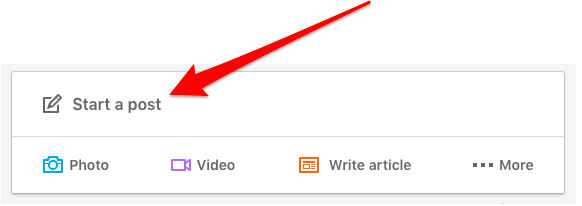
LinkedIn posts (formerly known as status updates) are the standard way to publish something on LinkedIn. You create them by simply clicking the “Start a post” text box.
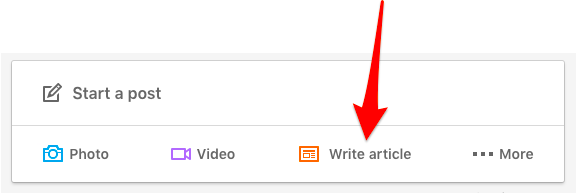
LinkedIn articles (formerly know as LinkedIn pulse) are more of a long-form post type, more similar to a blog post.
To create a LinkedIn article, click the “Write article” option.
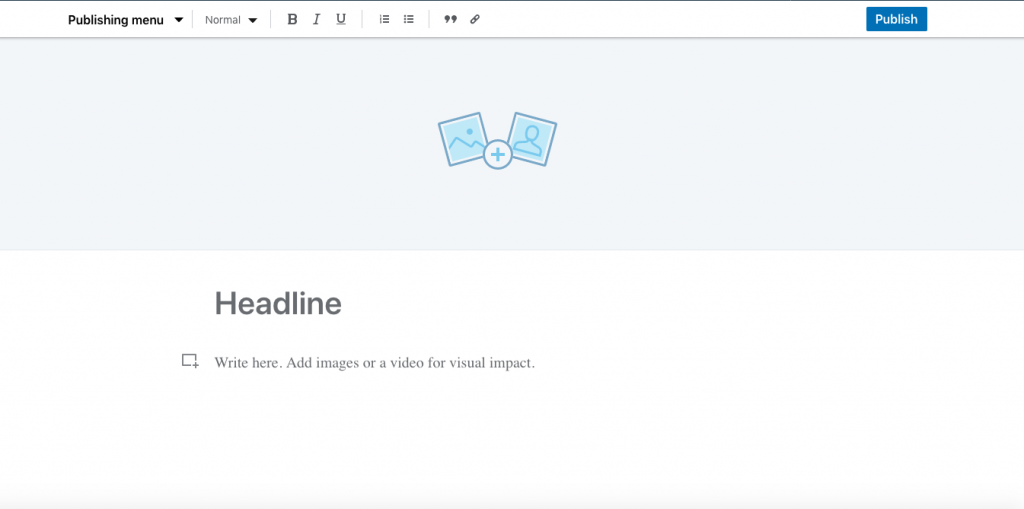
It will then take you to the LinkedIn article creator.
So should I publish a LinkedIn post or article?
According to most experts, LinkedIn posts (the first one mentioned above) get you more reach.
However, LinkedIn articles have a longer shelf-life. LinkedIn articles are indexed by search engines, and can be found for months and years into the future by people searching on Google.
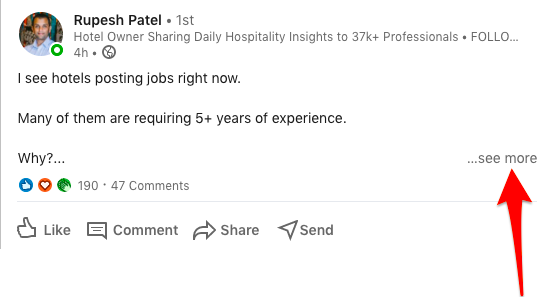
Typically, shorter form content should be a post. Posts have a character limit of 1,300, but once you get over 210 characters, it will require people to click the “See more” button to view the entire post.
However, longer LinkedIn posts typically perform better than shorter posts (but keep in mind the 1,300 character limit).
This is normally due to the fact that longer posts provide more value. Shorter LinkedIn posts are usually all fluff or “look at me” type posts.
If what you have to say cannot be written in 1,300 characters or less, then a LinkedIn article is the obvious choice.
Other times a LinkedIn article makes sense instead of a LinkedIn post would be when you have many images or screenshots that you want mixed in throughout your article, such as a “How to” guide.
LinkedIn company pages vs. personal profiles
LinkedIn supports both company pages and personal profiles. You can schedule posts on either using a social media scheduling tool.
However, there is no way to schedule a post directly on LinkedIn for either company pages or personal profiles.
Here are a few of the key differences:
Company pages represent collective organizations, while personal profiles represent individuals.
Your personal profile has connections. Your company page has followers.
You can only run ads on LinkedIn through a company page.
You must have a personal profile to set up a company page.
Your personal profile includes sections like Activity, Experience, Skills & Endorsements, Recommendations, and Interests. A company page includes sections like an Overview, About, Jobs, and People.
You ought to just be posting on LinkedIn about themes that are applicable to you and your niche.
If you work in a marketing related field, keep all your posts about marketing-related topics.
Do not post on LinkedIn about your new cat. That is for Facebook and Instagram.
Here are a couple of rules for posting on LinkedIn:
Post often
Posts in a consistent manner
Speak your audience’s language
Dont link to irrelevant things
Narrow down your niche
What kind of LinkedIn posts go viral?
Make the first couples sentences compelling Your most memorable sentence needs to offer something that quickly makes different clients quit looking over. Just the initial 210 characters of a post are seen on LinkedIn before clients need to click “see more”, so you really want to catch their eye immediately.
Research The Right Topic One of the most important parts of creating successful LinkedIn content is researching a winning topic that will go viral by using specific keywords. You can identify previous viral posts on LinkedIn using BuzzSumo. Choosing the right topic with the help of some research will pay dividends, rather than just randomly choosing something to write about, which may have poor visibility and reach.
Reply to Comments A great way to increase the odds of your post going viral is to reply to comments after publishing your posts. In your reply, try to say something that encourages another reply from the other person. The more comments and engagement on the post, the further it signals to LinkedIn’s algorithm that this post should be shown to more people.
Repurpose previously successful content Did you post something on your blog that got a ton of views and shares? Maybe you posted something on Facebook a few months ago that was a big hit. Take those posts and repurpose them for a LinkedIn post.
Use LinkedIn Hashtags Yes, hashtags aren’t just for Twitter and Instagram. Using hashtags that many people follow gives you a much better chance to go viral on LinkedIn.
Post on LinkedIn at the optimal times If you post something on LinkedIn at 3:00 AM, almost nobody will see it. Without the initial burst of comments and likes, it will signal to LinkedIn’s algorithm that this post is not worth showing to other people. According to LinkedIn, the best time to post is early morning, lunchtime and early evening between Tuesdays and Thursdays. The absolute best time to post on LinkedIn is between 10 a.m and 11 a.m every Tuesday.
Add a Call-To-Action (put them in the first comment) Want to direct your readers to your website, or some other place? Put your call-to-action in the first comment of the post. Studies suggest that posts with no links in the main post perform better than posts with links, so add your link in the first comment, rather than in the post itself.
How often should I post on LinkedIn?
To keep a predictable presence and to develop your devotees on LinkedIn, it requires posting frequently. Studies recommend that posting on LinkedIn something like once a day is best
But physically posting something on informal organizations like LinkedIn consistently can be difficult.
You neglect, something comes up working, your canine ate your schoolwork, and so forth. There are a lot of reasons that a great many people don’t post on LinkedIn consistently.
To make things considerably more troublesome, LinkedIn doesn’t give a method for booking LinkedIn posts locally. That implies you would have to physically login to LinkedIn each time you need to post something, and preferably do it during top hours.
But you CAN schedule LinkedIn posts. You just need to use a social media scheduling tool, such as OneUp.
When you plan your LinkedIn posts, it empowers you to cluster all your post making into a solitary meeting, instead of attempting to recollect each day.
If you require an hour making LinkedIn posts, you can most likely concocted basically possibly 14 days worth of content for posting on LinkedIn.
The other advantage of utilizing a booking device for LinkedIn posts is that it permits you to plan posts for the ideal time each day.
That implies you don’t really have to be available during those great posting hours, you can simply plan your LinkedIn posts, and know that your posts will distribute during those pinnacle hours each day.
However, even if you plan your LinkedIn posts, it doesn’t mean you can just put everything on autopilot. You actually need to engage and reply to comments that you get on your LinkedIn posts
How to schedule LinkedIn Stories
In 2020, LinkedIn revealed LinkedIn Stories, a feature very similar to Instagram Stories, Facebook Stories, and Snapchat Stories.
However, in 2021, LinkedIn decided to shutdown LinkedIn Stories, so they no longer exist anymore.
How to schedule posts in LinkedIn Groups
LinkedIn Groups have never quite caught on like Facebook Groups, but there are still many large and active LinkedIn Groups.
However, LinkedIn does not provide a way to schedule posts to LinkedIn Groups: There is no way to do it on LinkedIn itself, and LinkedIn’s API does not support it either, meaning no scheduling tools can schedule LinkedIn Group posts.
OneUp is one of the only social media scheduling tools that supports mixed media posts, meaning you can add both images and videos in the same Instagram post using OneUp.
To schedule a mixed media Instagram post in OneUp, just choose the “Mixed media post (image + video)” option in the dropdown menu:
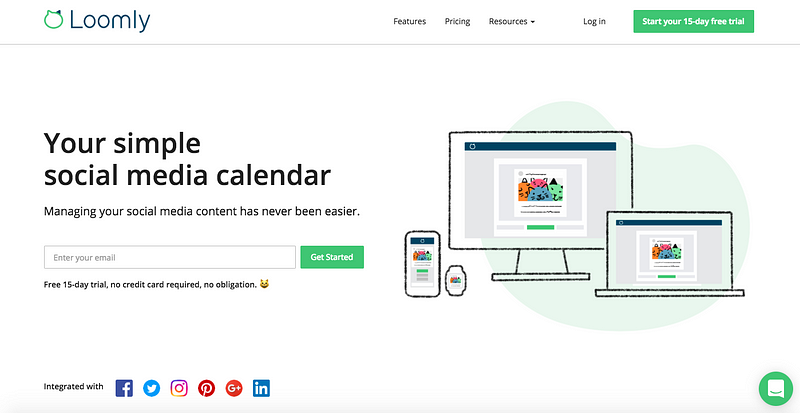
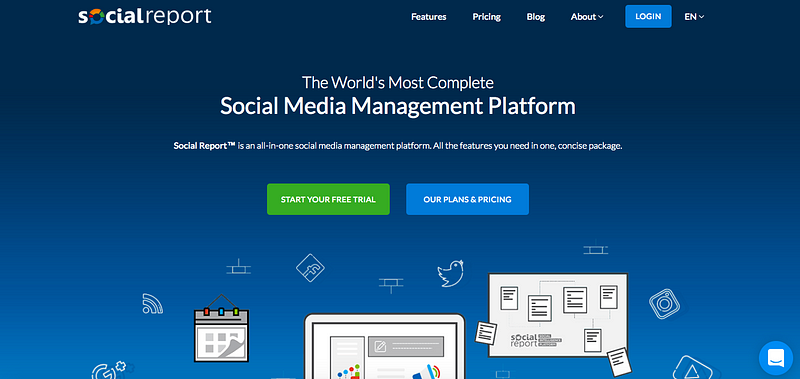
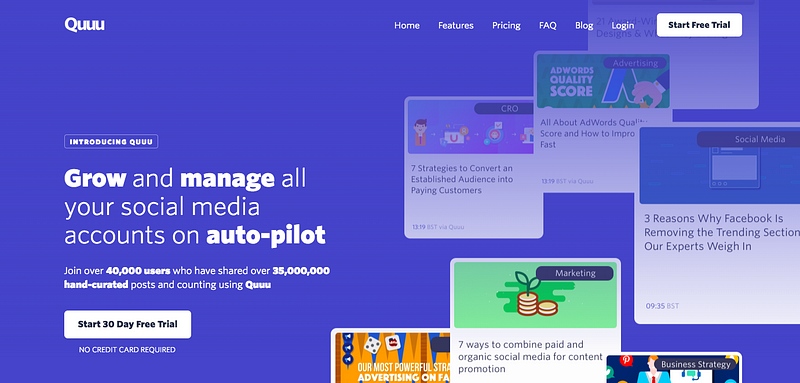
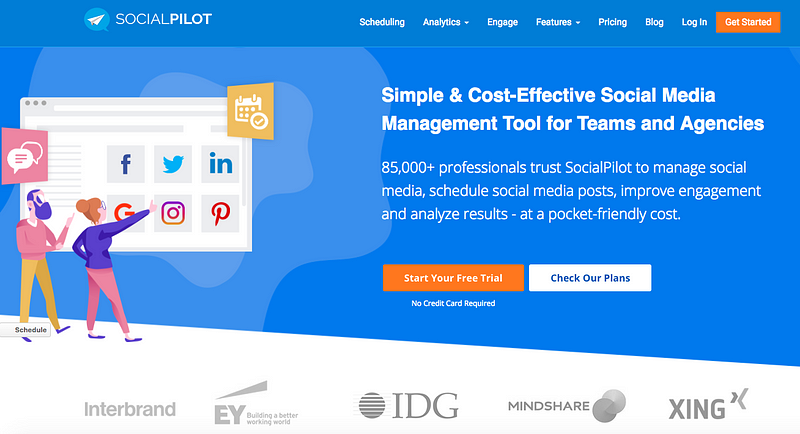
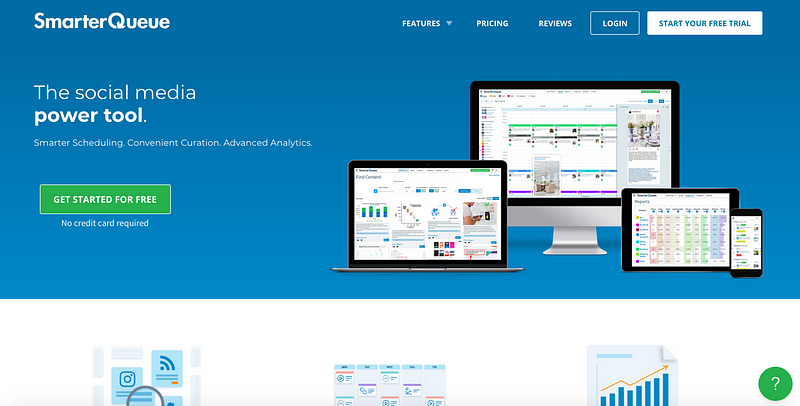
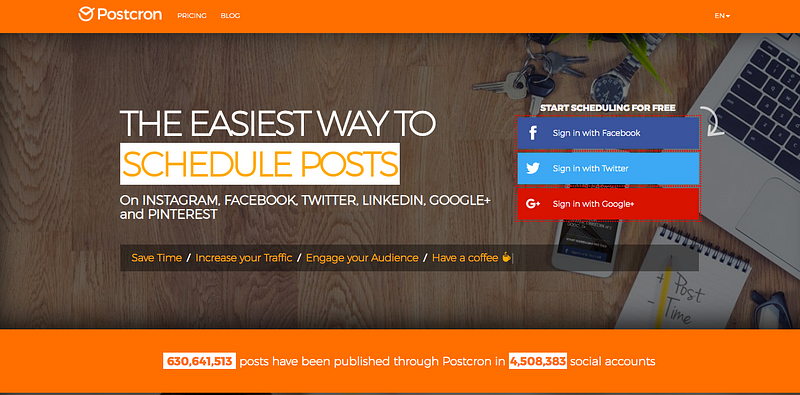
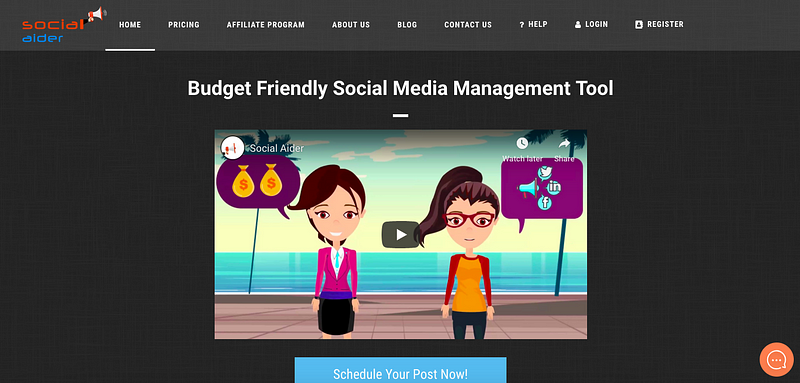
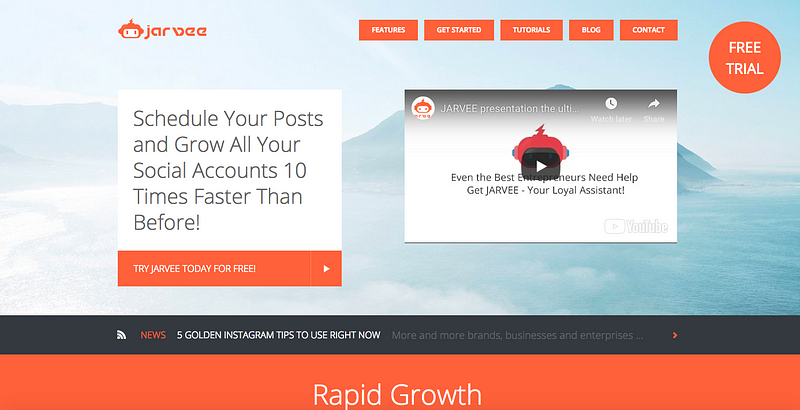
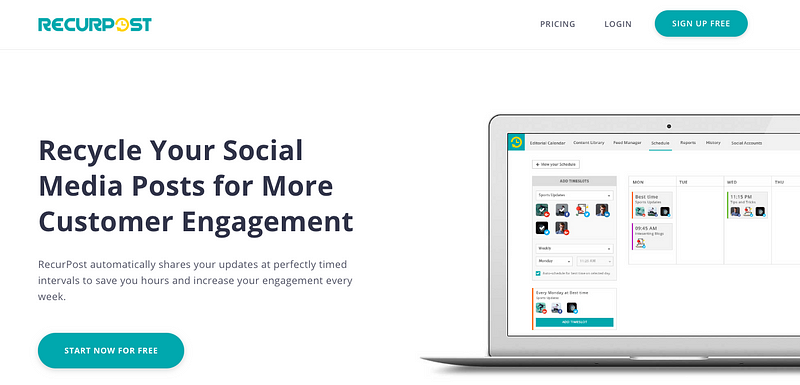
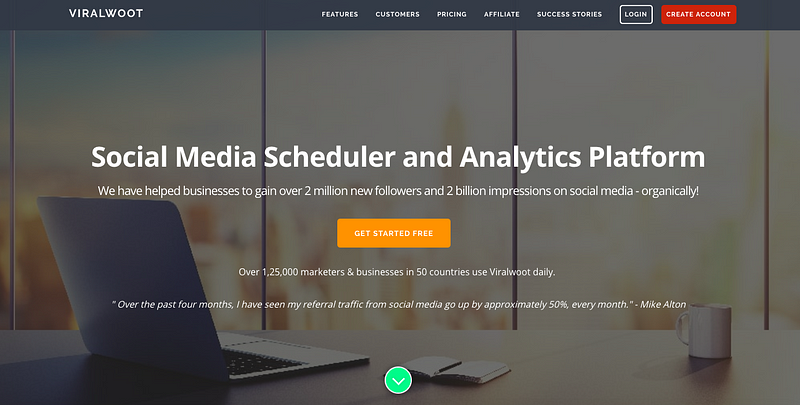
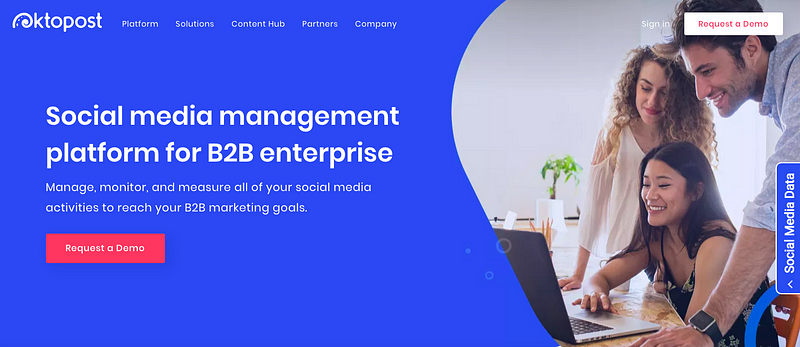
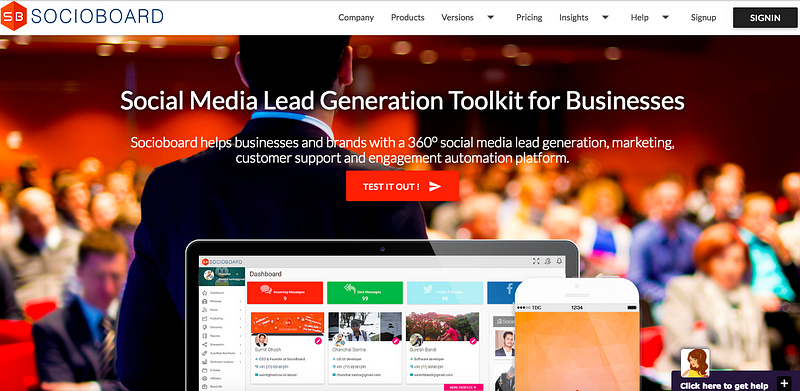
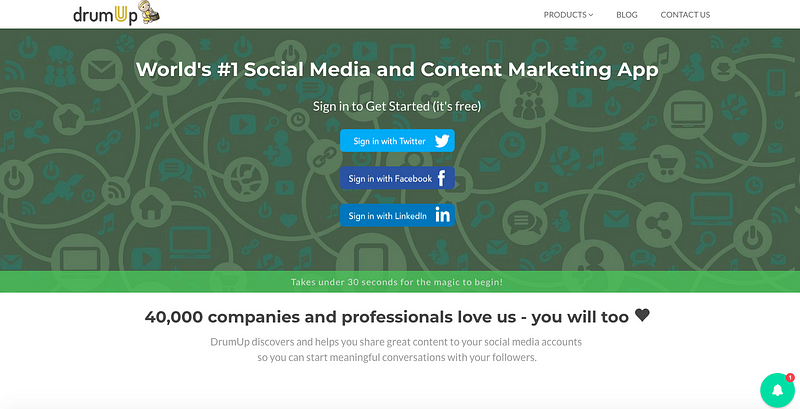
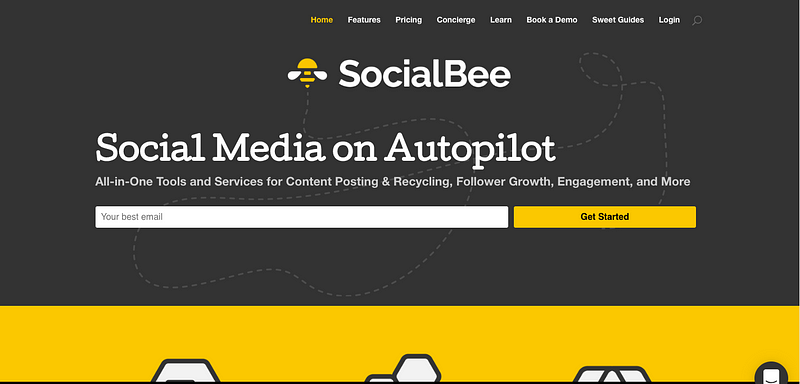
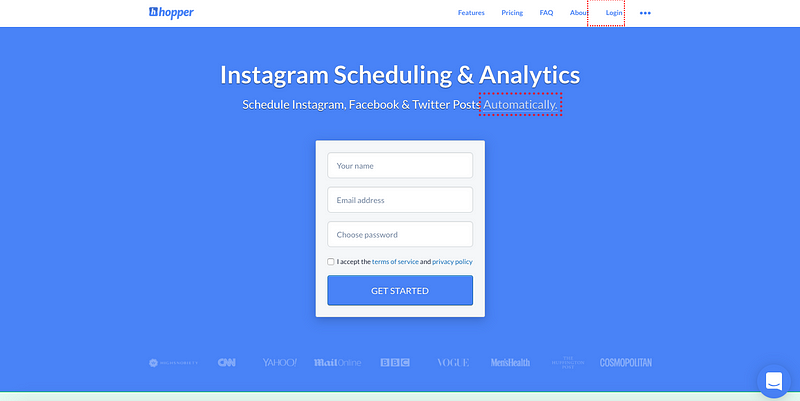
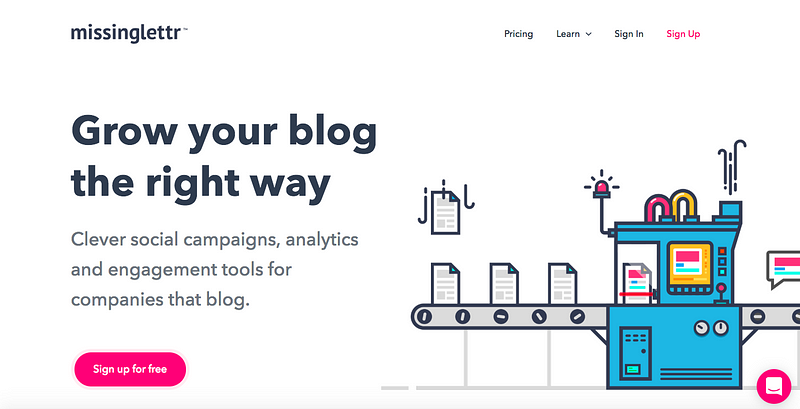
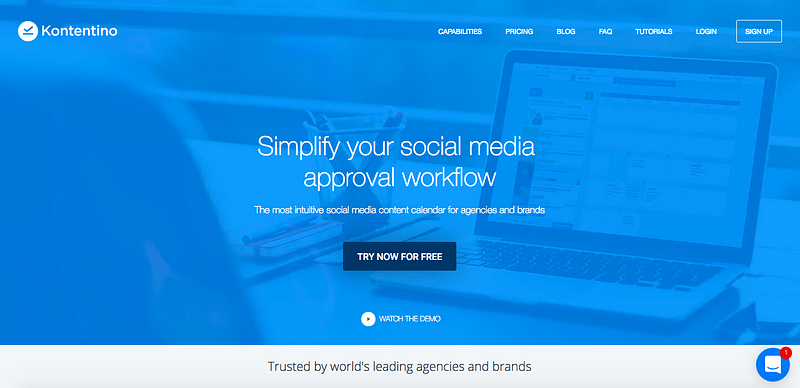
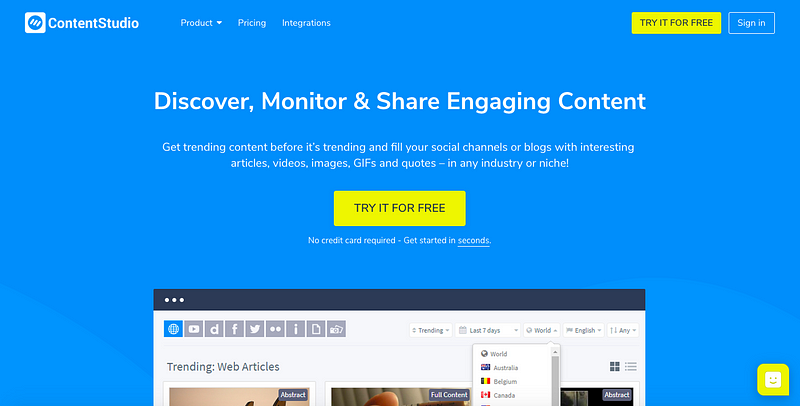
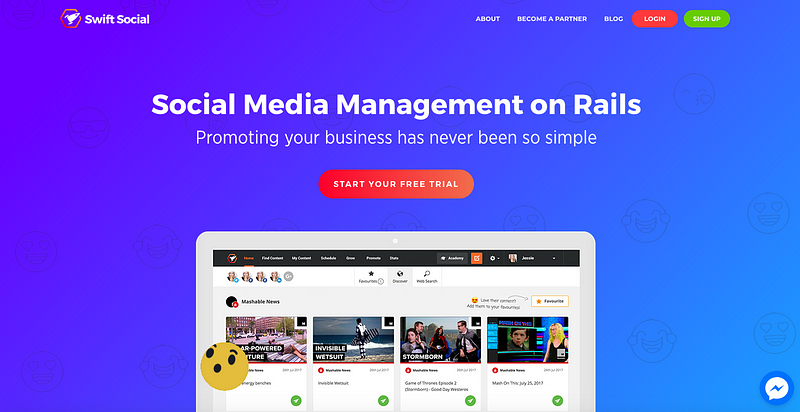
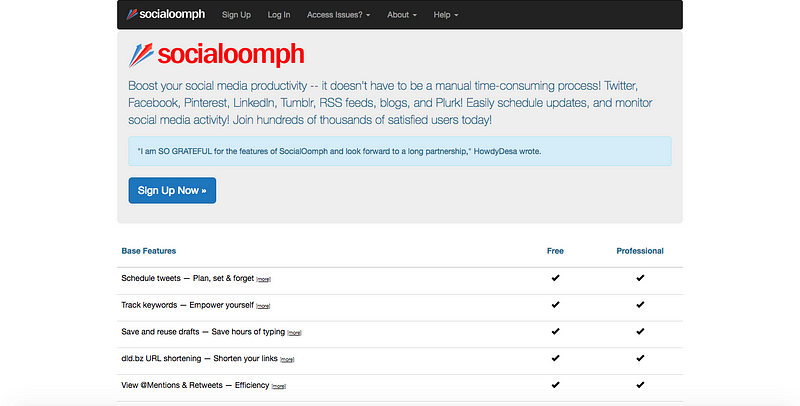
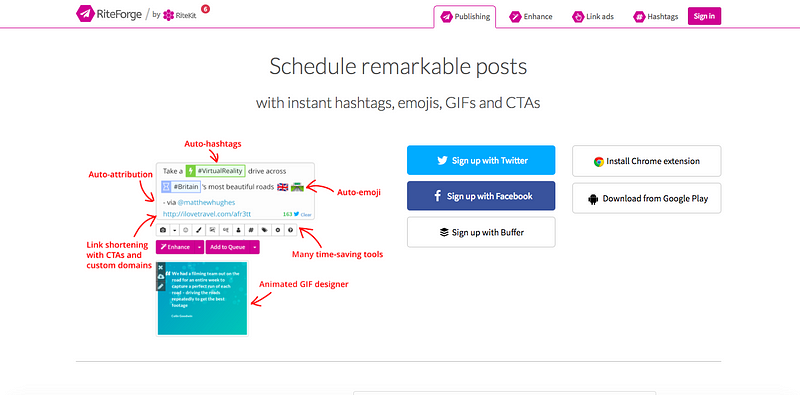
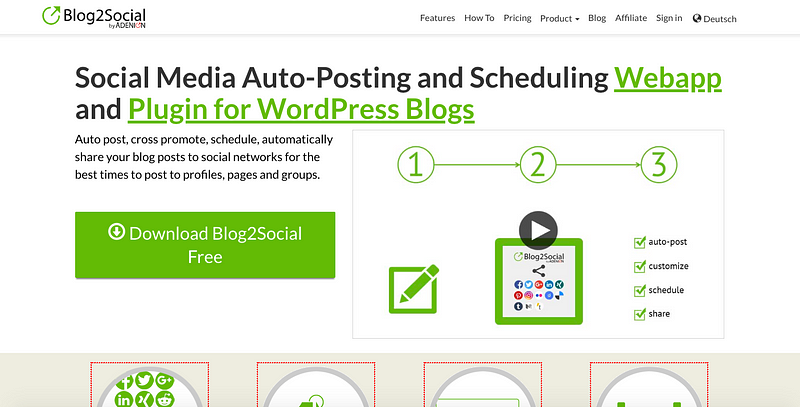
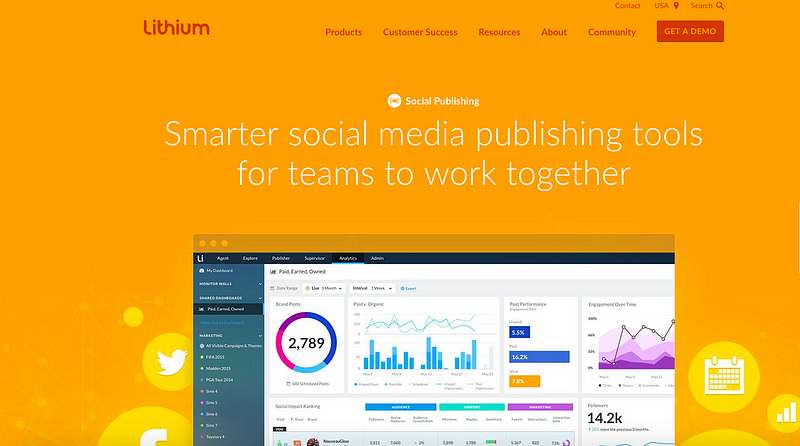
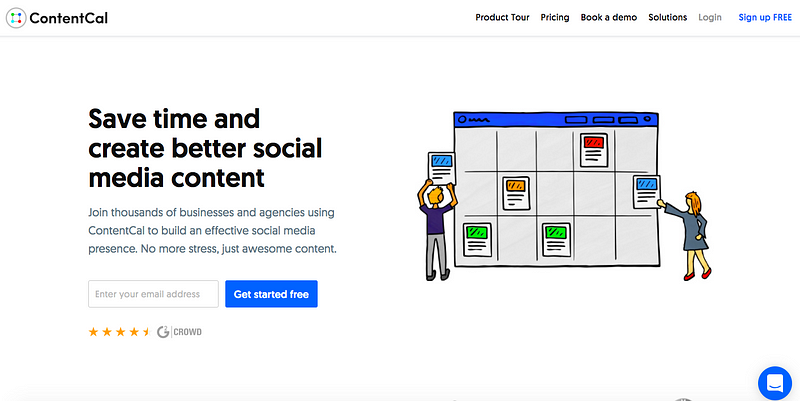
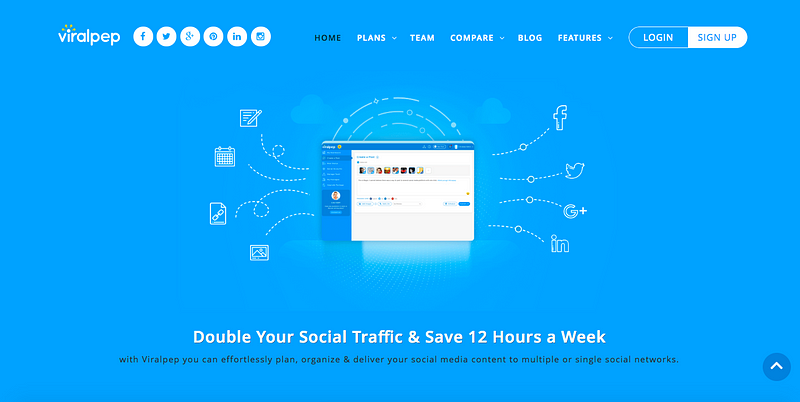
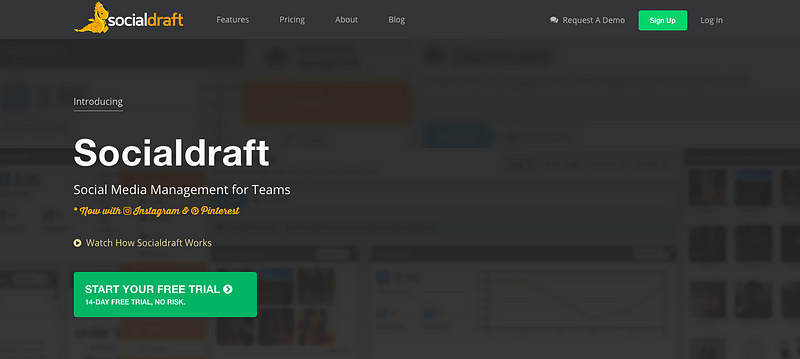
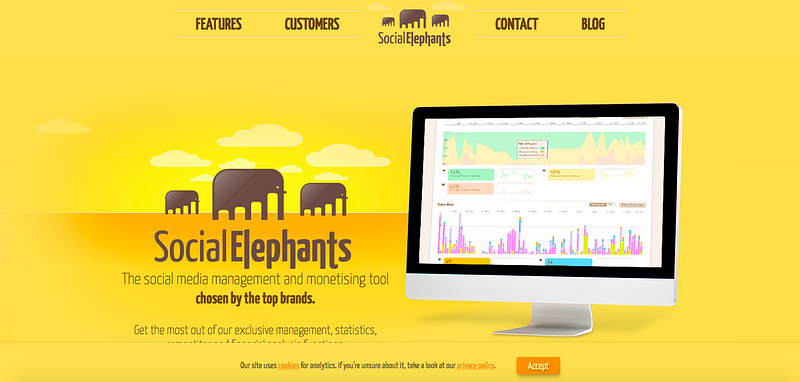
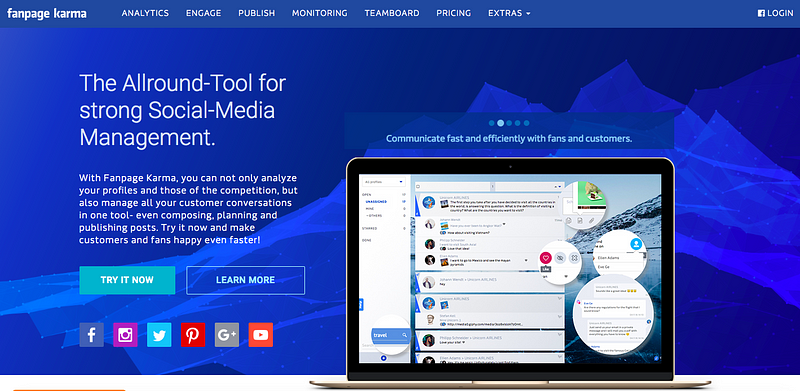
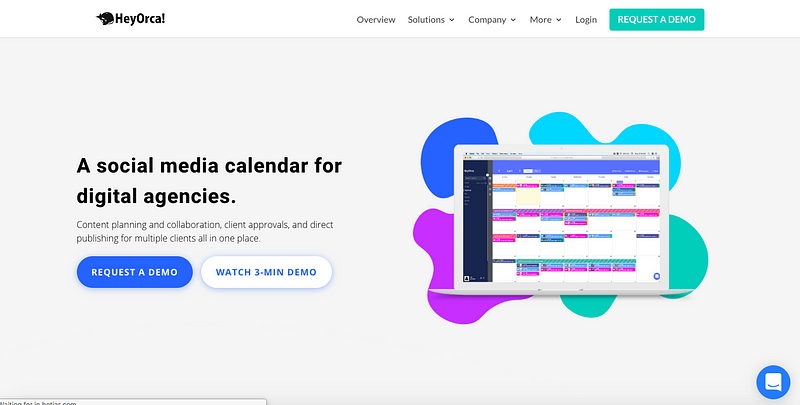
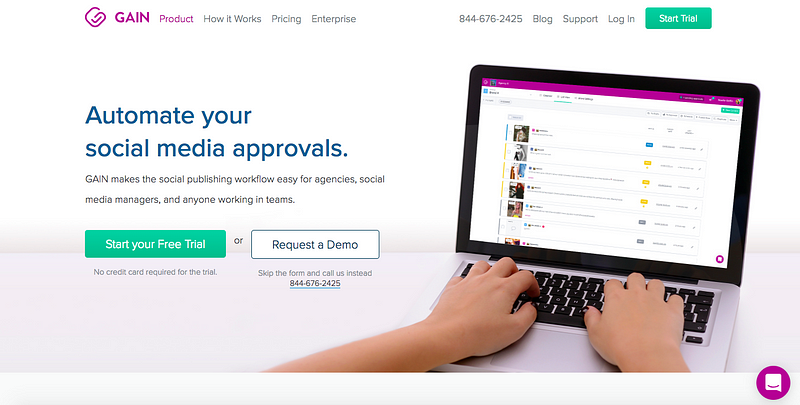
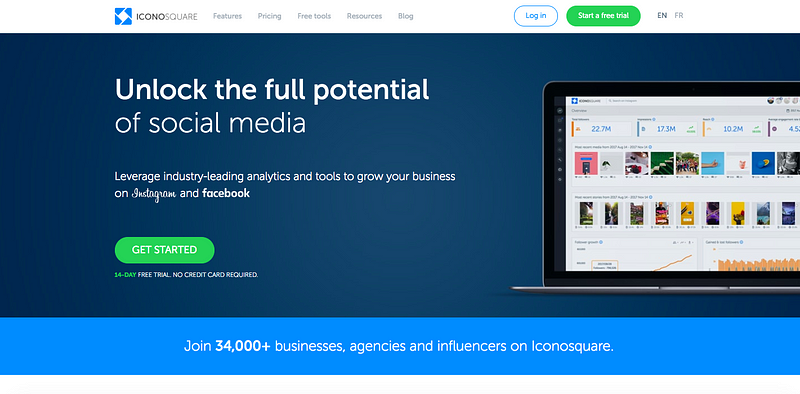
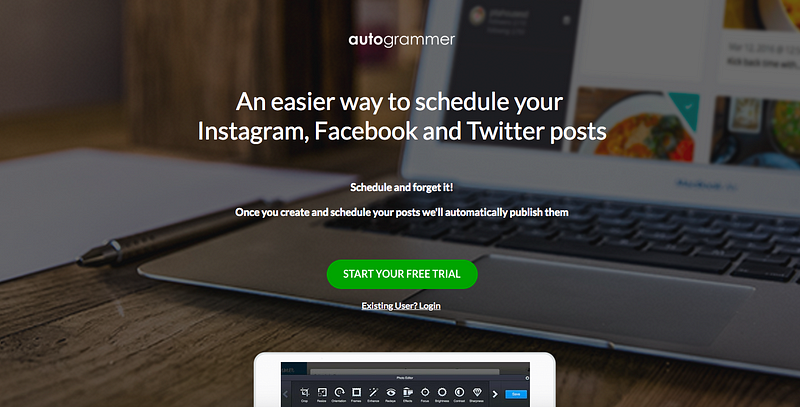
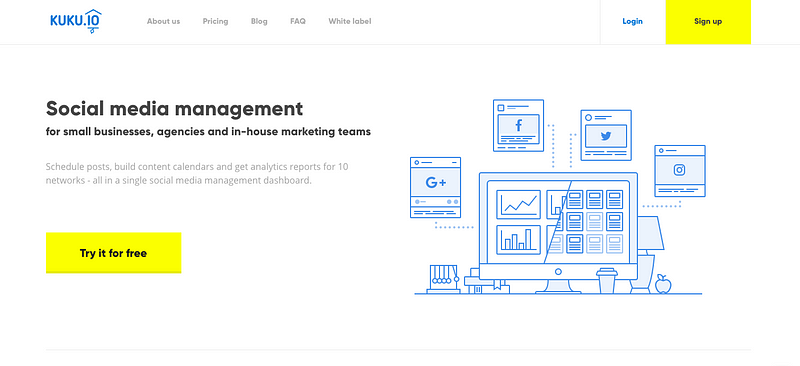
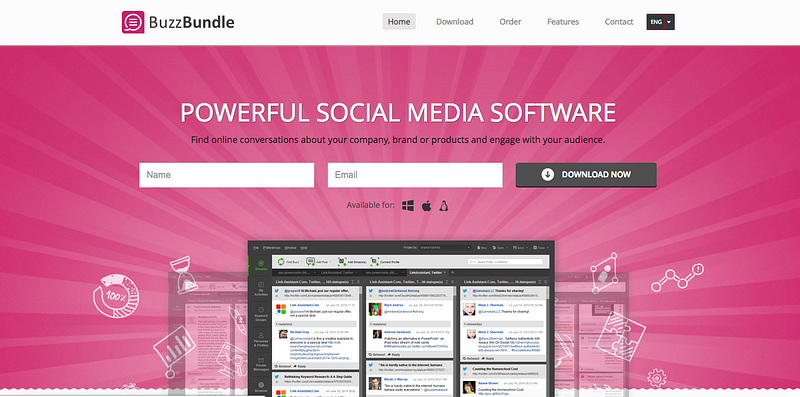
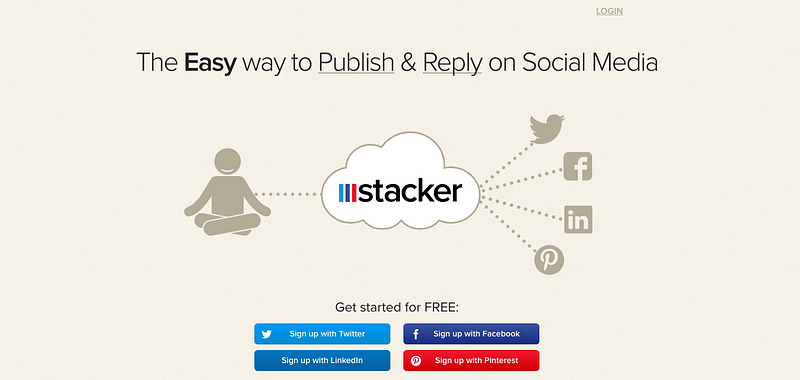
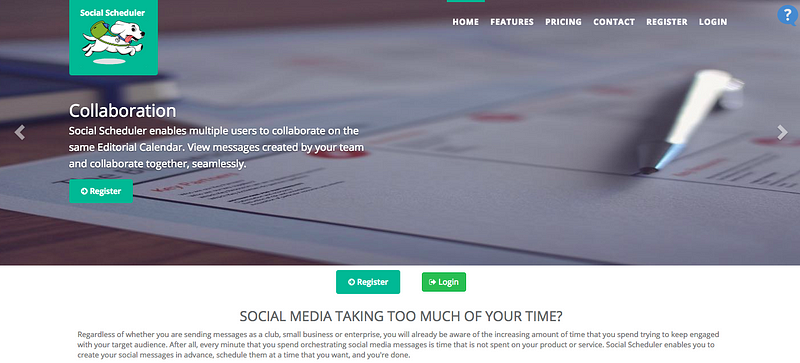
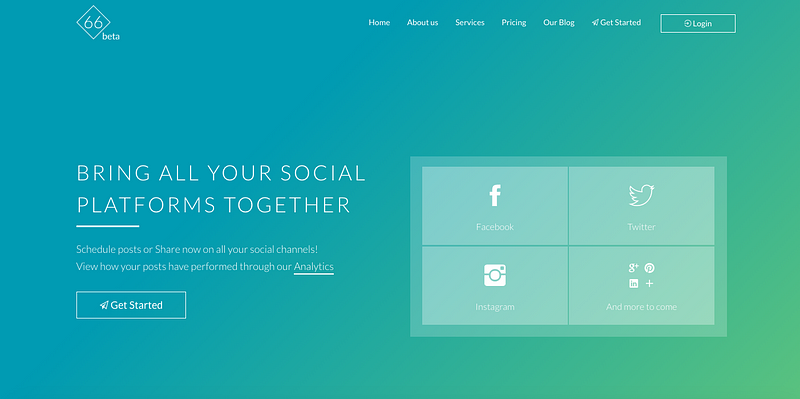
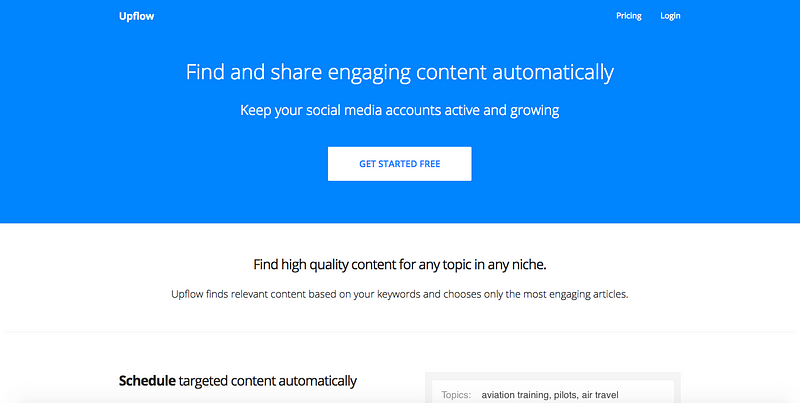
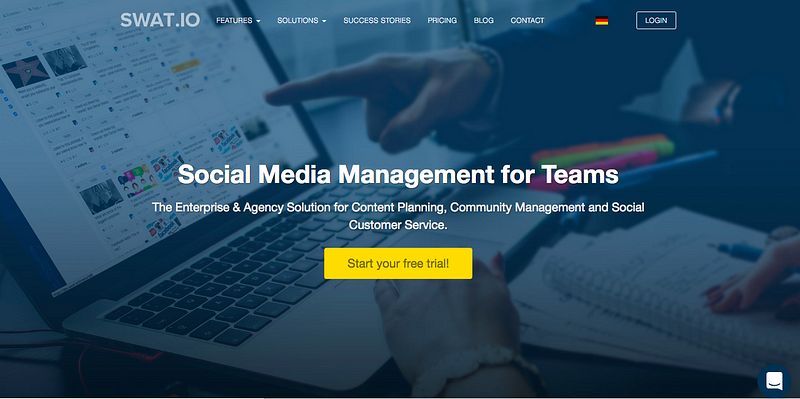
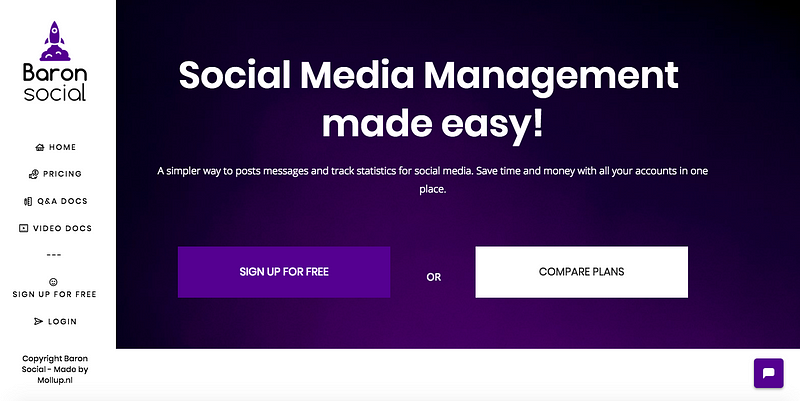
This blog post goes over every single social media scheduling tool, and is updated regularly to provide updated information. Some of the social media schedulers are free, some are paid.
This list only covers scheduling tools that support multiple social networks. Scheduling tools that only support a single social network, such as Tweetdeck, have not been included.
Social networks supported by this social media scheduling tool: Facebook, Instagram (including Reels, Stories, Collabs, Carousels, and mixed media carousels with images and videos in same post), Twitter, Pinterest, LinkedIn, Google My Business, TikTok, YouTube, Reddit, Threads, Snapchat, and Bluesky.
Starting price: $18/month, 10 social accounts
Free-forever plan: No.
Features
Posting to multiple accounts – Facebook, Instagram (including Reels, Stories, Collabs, Carousels, and mixed media carousels with images and videos in same post), Twitter, Pinterest, LinkedIn, Google My Business, TikTok, YouTube, Reddit, Threads, Snapchat, and Bluesky.
You can customize the post for each social network, add multiple images to each post, and directly import free, high-quality images with our Unsplash integration.
Schedule Instagram Stories – Schedule Instagram Stories with OneUp, and receive notifications on your phone when it’s time to publish them.
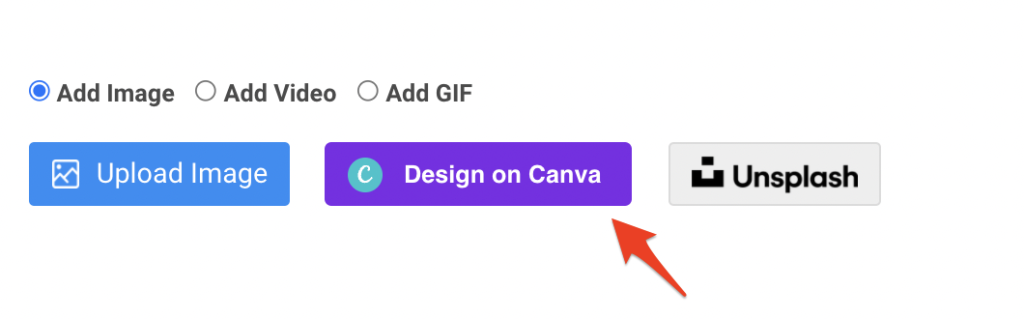
Canva integration – OneUp directly integrates with Canva. Just click the “Design on Canva” button in the scheduler, and Canva will open directly inside of OneUp.
Click the “Publish” button in the Canva editor, and your image will be uploaded to OneUp directly. No need to download images from Canva, then upload to OneUp 🙂
Repeating post – OneUp gives you the option to automatically repeat your posts at whatever interval you choose, such as every 3 weeks, or even “the first Monday of each month”. Then post it now, schedule it for the future, or save the post in your Drafts folder.
Posting to Google My Business – OneUp is one of the few social media scheduling tools that supports Google My Business post scheduling. OneUp supports Call-To-Action buttons, and different post types such as Event posts.
You can even choose for your post’s image to be added to the Photos section of Google My Business as well.
Auto-posting from RSS feeds – You can connect an RSS feed to OneUp, and have posts automatically published whenever there is something new in the feed. Or, you can choose to have each new item from the feed go to your Drafts folder, so you can review which posts you want to publish.
Bulk uploading posts – OneUp supports bulk uploading posts from a CSV, directly from your computer, or via OneUp’s Chrome extension.
Customizable UTM parameters – OneUp lets you customize UTM parameters so you can keep track of how your links are performing in Google Analytics.
Link Shortening – Connect your Bitly account and OneUp will automatically shorten any links and allow you to track clicks through Bitly.
Schedule X Threads – Not many scheduling tools allow you to schedule Twitter threads (AKA tweetstorms), however you can do so with OneUp, and even add images, GIFs, and videos on each tweet in your thread.
And one last thing: OneUp has received over 350 positive reviews on Capterra
Social networks: Facebook, Twitter, Instagram, LinkedIn
Starting price: Undisclosed.
Free-forever plan: No.
Social media management tools make it easy to manage all your social accounts. Social media marketing is helpful for managing multiple social accounts, publishing content, and can help you schedule tweets, schedule Facebook posts, schedule Instagram posts, schedule LinkedIn posts, schedule Twitter posts, schedule Pinterest posts, schedule Google My Business posts, and even schedule Reddit posts. Marketing teams and content creators will find social media management tools helpful for real-time social media content marketing.
Did I miss any social media schedulingtools? Let me know in the comments and I will add them
Back in 2022, Facebook made some changes and removed the ability to schedule posts directly on Facebook pages.
NOTE: This post is about scheduling posts to a Facebook Page. If you are looking to schedule posts to a personal Facebook Profile, check out this post instead.
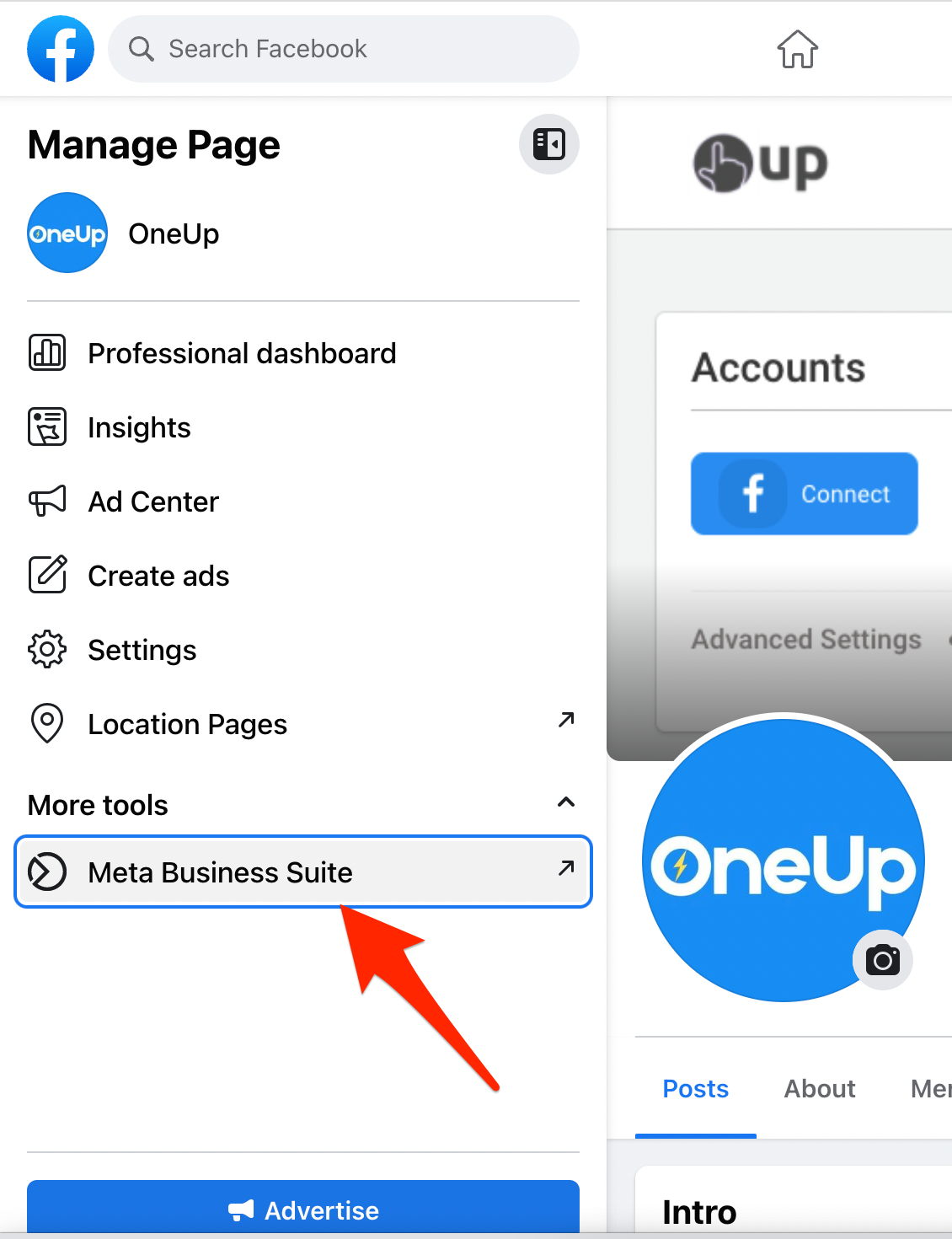
To schedule posts on your Facebook page, you now need to go to Meta Business Suite.
To find Meta Business Suite, look on your Facebook page’s navigation sidebar:
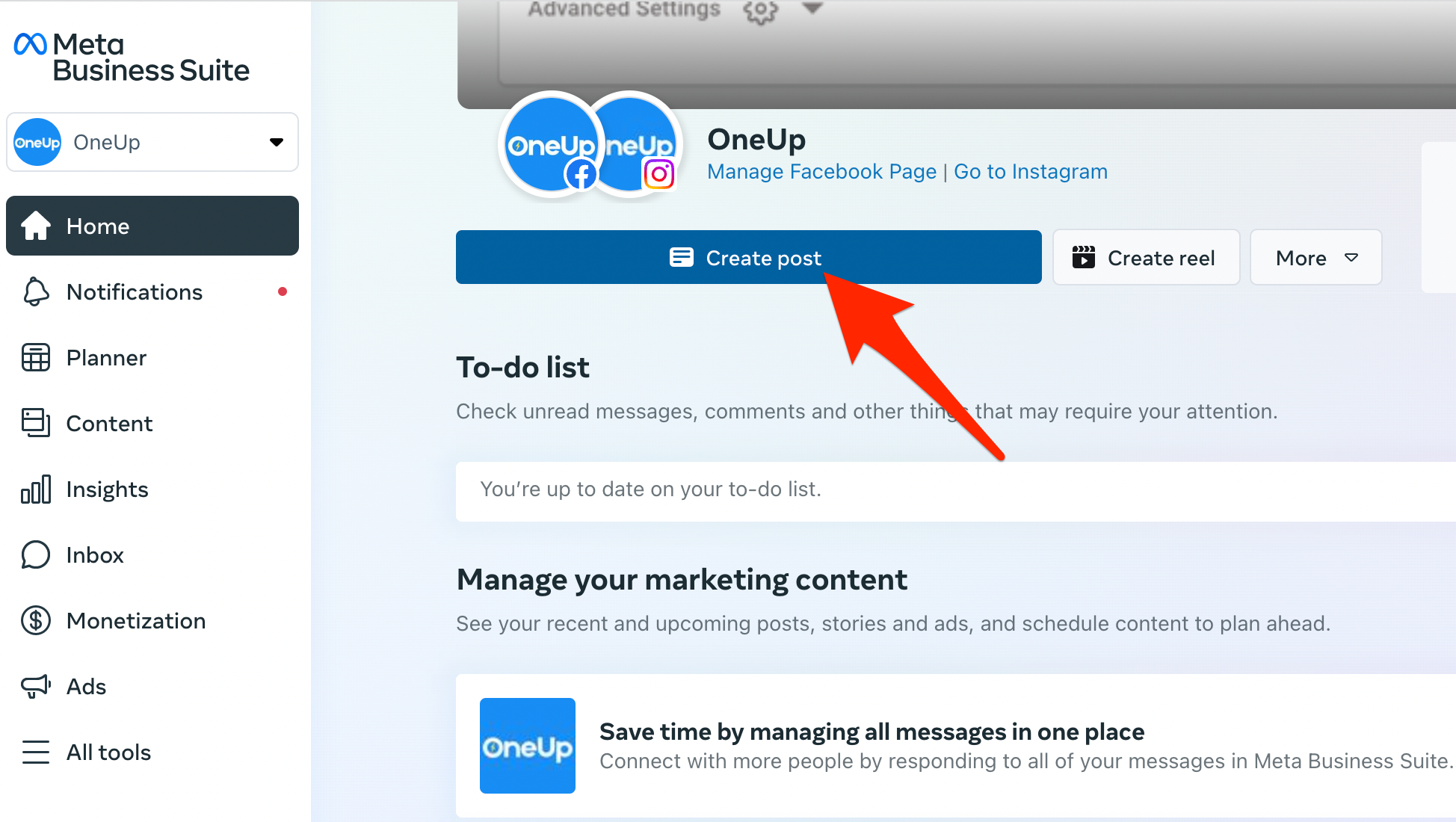
Once there, click “Create post”:
Then create your post and choose “Schedule” in the options here:
Choose your date and time, and that’s it. Your Facebook page post is now scheduled.
Alternative ways to schedule your Facebook page posts:
Use a social media scheduling tool (allows you to schedule posts MORE than 29 days into the future)
Need a way to schedule Facebook posts more than one month into the future?
If you need a social media scheduling tool, OneUp allows you to schedule posts on Facebook, Twitter, Pinterest, LinkedIn, Instagram (including Instagram Reels, Stories, and carousels), Google My Business, TikTok, and YouTube (including Shorts).
And yes, you can schedule posts as far into the future as you want with OneUp
Here are some of the features:
Posting to multiple accounts – OneUp makes it easy to post to Instagram (with direct posting), Facebook (Profiles, Pages, and Groups), LinkedIn (Profiles and Pages), Twitter, Pinterest, and Google My Business all at once.
You can customize the post for each social network, add multiple images to each post, and directly import free, high-quality images with our Unsplash integration.
Schedule Instagram Stories – Schedule Instagram Stories with OneUp, and receive notifications on your phone when it’s time to publish them.
Canva integration – OneUp directly integrates with Canva. Just click the “Design on Canva” button in the scheduler, and Canva will open directly inside of OneUp.
Click the “Publish” button in the Canva editor, and your image will be uploaded to OneUp directly. No need to download images from Canva, then upload to OneUp 🙂
Repeating post – OneUp gives you the option to automatically repeat your posts at whatever interval you choose, such as every 3 weeks, or even “the first Monday of each month”. Then post it now, schedule it for the future, or save the post in your Drafts folder.
Posting to Google My Business – OneUp is one of the few social media scheduling tools that supports Google My Business post scheduling. OneUp supports Call-To-Action buttons, and different post types such as Event posts.
You can even choose for your post’s image to be added to the Photos section of Google My Business as well.
Auto-posting from RSS feeds – You can connect an RSS feed to OneUp, and have posts automatically published whenever there is something new in the feed. Or, you can choose to have each new item from the feed go to your Drafts folder, so you can review which posts you want to publish.
Bulk uploading posts – OneUp supports bulk uploading posts from a CSV, directly from your computer, or via OneUp’s Chrome extension.
Customizable UTM parameters – OneUp lets you customize UTM parameters so you can keep track of how your links are performing in Google Analytics.
Schedule Twitter Threads – Not many scheduling tools allow you to schedule Twitter threads (AKA tweetstorms), however you can do so with OneUp, and even add images, GIFs, and videos on each tweet in your thread.
And one last thing: OneUp has received over 260 positive reviews on Capterra
If you need a way to schedule posts on your Facebook Page, check out OneUp
This post shows how to post to multiple Instagram accounts at the same time.
If you manage a bunch of Instagram accounts, you know how messy it is keeping track of all your different accounts and posts.
SOLUTION:
If you need a simple way to schedule posts or post immediately to multiple Instagram accounts at the same time check out OneUp.
OneUp supports Instagram posts, carousels, Reels, and Stories (in addition to Facebook and all the other social networks).
The best part: OneUp allows you to post UNLIMITED social accounts for a fixed price 🤓
How to post to multiple Instagram accounts at the same time
Connect your Instagram accounts
Click “Create A Post”
Select which Instagram accounts you want to post to
Create your post
Choose whether you want it to post once or automatically repeat
Post it now, or schedule it for the future
Here are those steps with screenshots:
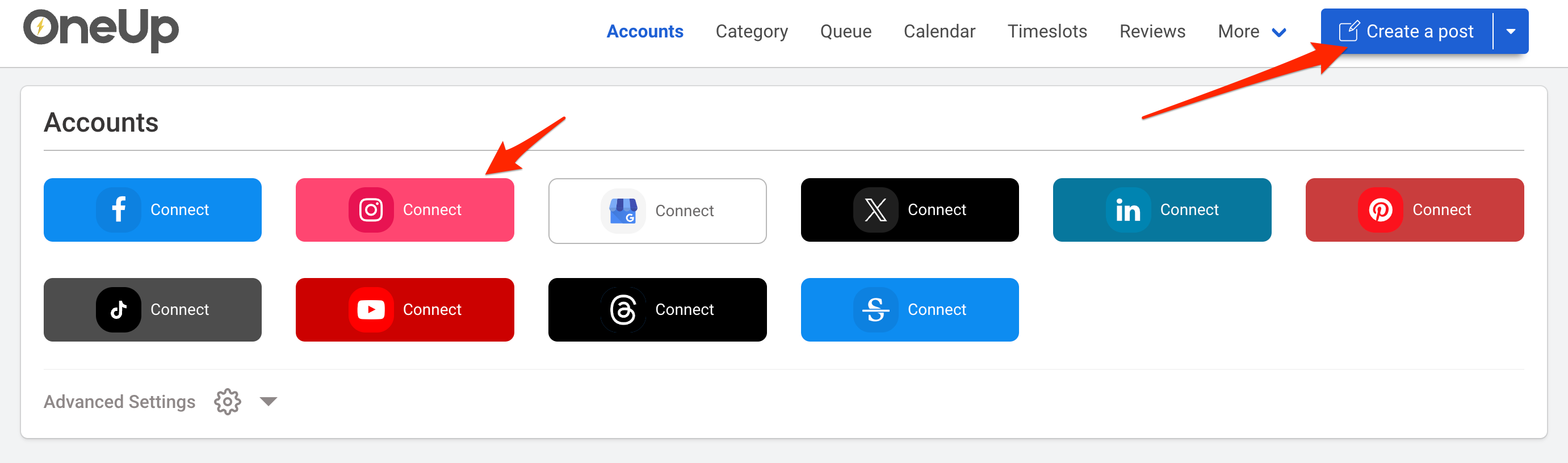
First, connect your Instagram accounts on the Accounts page of OneUp.
OneUp supports Instagram, Facebook, Google Business Profiles, X, LinkedIn, Pinterest, TikTok, Threads, YouTube, and Stocktwits:
Then click “Create a post”.
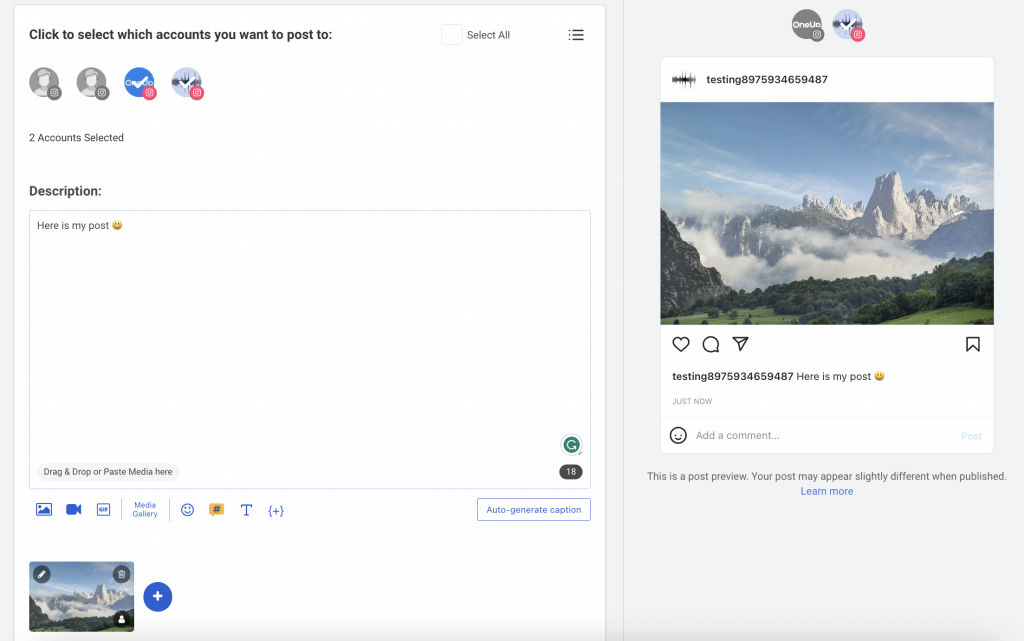
Choose which Instagram accounts you want to post to. You can choose some or all of your Instagram accounts; you just click to select which Instagram accounts you want to post to:
Then you add your post, with whatever image(s) or video you would like. Just like on Instagram, OneUp supports adding up to 10 images on each post.
With OneUp you can:
upload your own image
choose from free high-quality images via OneUp’s Unsplash integration
create your own image directly inside of OneUp with the Canva integration
create your own AI-generated image inside of OneUp with the OpenAI integration
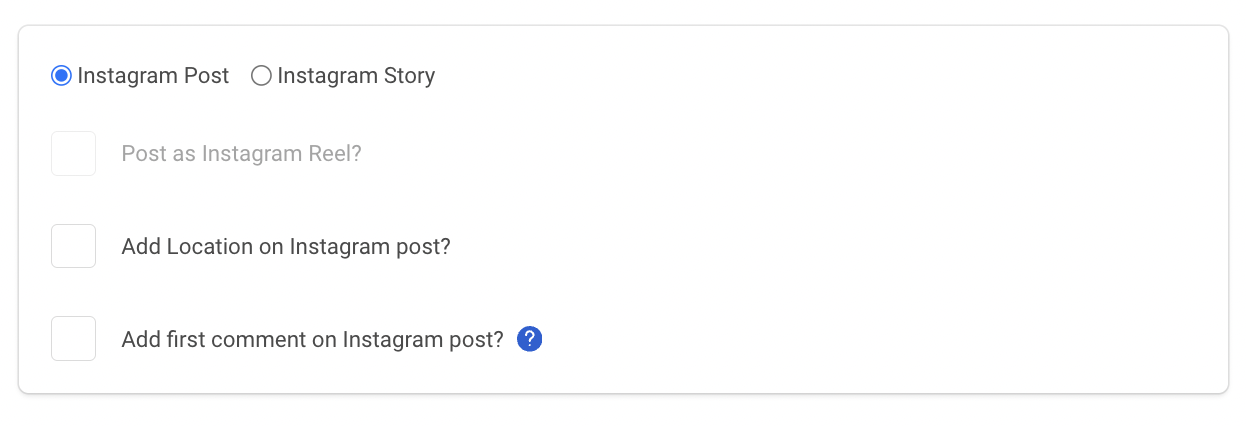
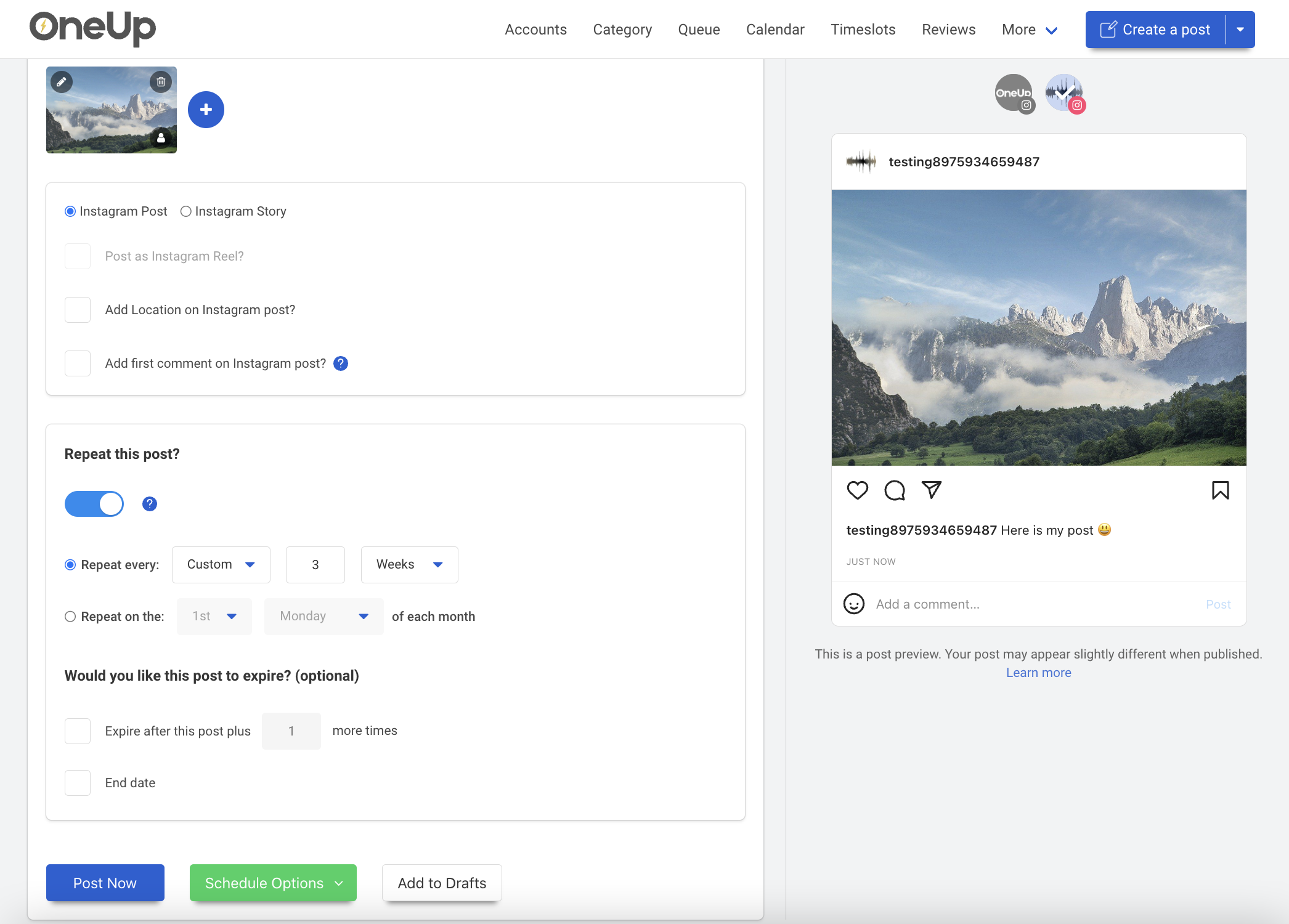
You can choose whether you want it to be an Instagram post or an Instagram Story
If you upload a video, the “Post as Instagram Reel” option gets enabled.
OneUp also allows you to add a location tag and add a first comment to your Instagram posts.
Then choose whether you want it to post once, or if you would like the Instagram post to automatically repeat:
Then to finish up, you choose whether you want to post to all your Instagram accounts now, OR schedule the post for the future, OR add the post to your Drafts folder to save it for later.
I want to post to multiple Facebook Pages and Instagram accounts at the same time. Can I do that with OneUp?
Yes, you can post to multiple Facebook Pages and Instagram accounts with OneUp.
Can I schedule Instagram Reels to multiple Instagram accounts at the same time with OneUp?
Yes, you can schedule and post Instagram Reels to multiple Instagram accounts at the same time with OneUp 🤓
Can I schedule Instagram Stories to multiple Instagram accounts at the same time with OneUp?
Yes, you can schedule and post Instagram Stories to multiple Instagram accounts at the same time with OneUp 😀
Can I schedule posts to my Instagram accounts and other social media accounts at the same time with OneUp?
Yes, you can schedule posts to your Instagram accounts at the same time as your other social media accounts. OneUp supports posting to Instagram, Instagram, Twitter, LinkedIn, TikTok, YouTube, Pinterest, Stocktwits, and Google Business Profiles.
Now you can easily post to multiple Instagram accounts at the same time with just a few clicks.
In addition to Instagram, OneUp supports Facebook, X, LinkedIn, TikTok, YouTube, Threads, Pinterest, Stocktwits, and Google My Business.
Try out OneUp for posting to multiple Instagram accounts at the same time.
The best part: OneUp allows you to post UNLIMITED social accounts for a fixed price 🤓 (yes, even if you have hundreds or thousands of Instagram accounts that you manage)
In 2023, Zapier removed their X/Twitter integration:
However, using OneUp (the social media scheduling tool), you can auto-post from any source to X/Twitter using OneUp’s Zapier integration.
OneUp is a social media scheduling tool that supports X/Twitter, Facebook, Instagram, Pinterest, LinkedIn, Google Business Profiles, YouTube, and TikTok.