With the app, you can customize the text of each push notification, and choose how many times a day you want it to send you a random push notification.
It’s a great random daily reminder app.
It’s a random reminder app for Android, and it’s a random reminder app for iPhone.
At this time, Google My Business, or GMB for short, only allows you to create posts for one location at a time. This can be quite annoying if you manage multiple Google My Business locations and want to share the same post over those multiple locations.
Yes, you could always manually copy and paste your post across all your locations, but that would be a frustrating waste of time.
The best part: OneUp allows you to post UNLIMITED locations for a fixed price 🤓
How to post to multiple Google locations at once
Connect your Google Business locations to OneUp
Click “Create a post”
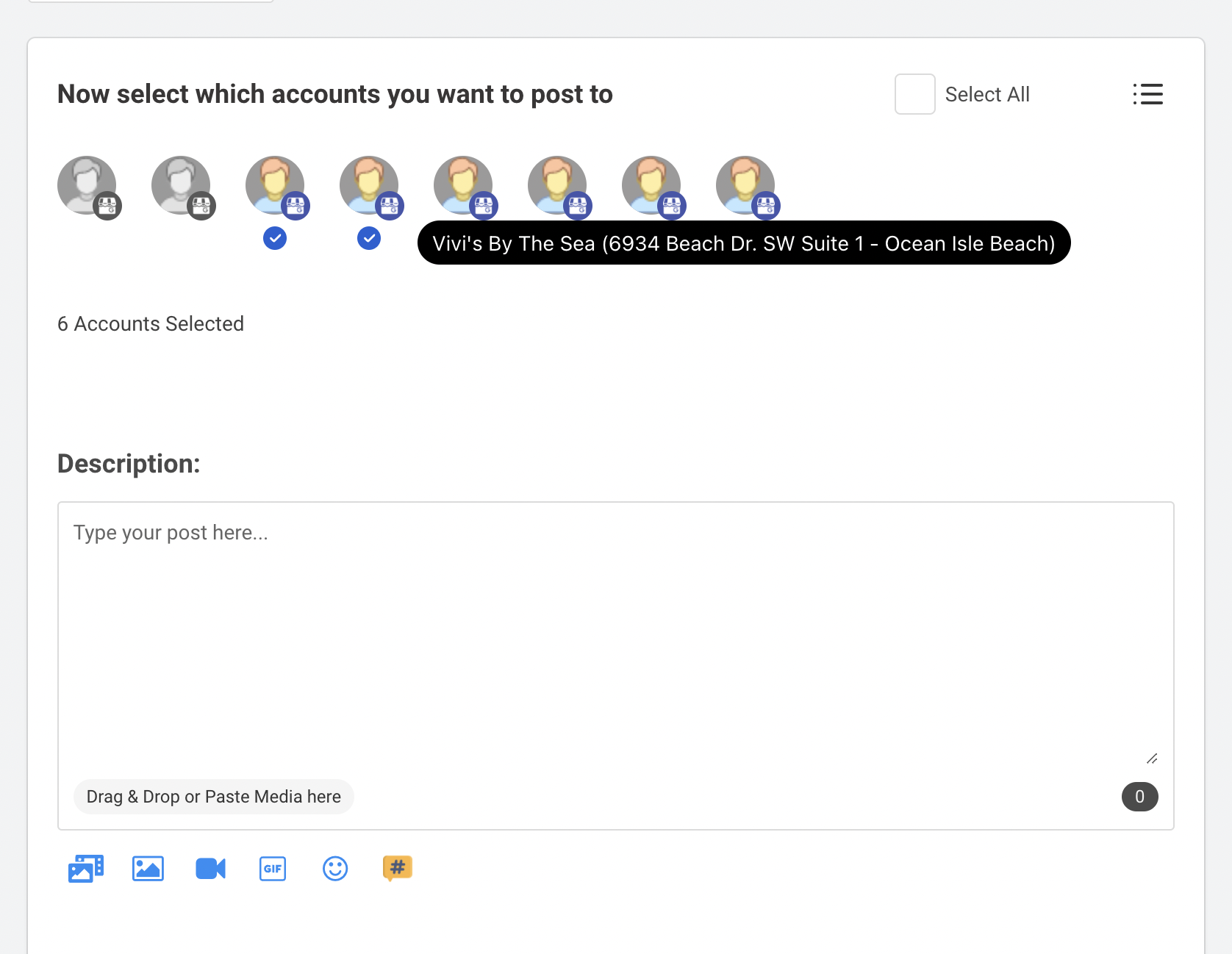
Select which locations you want to post to
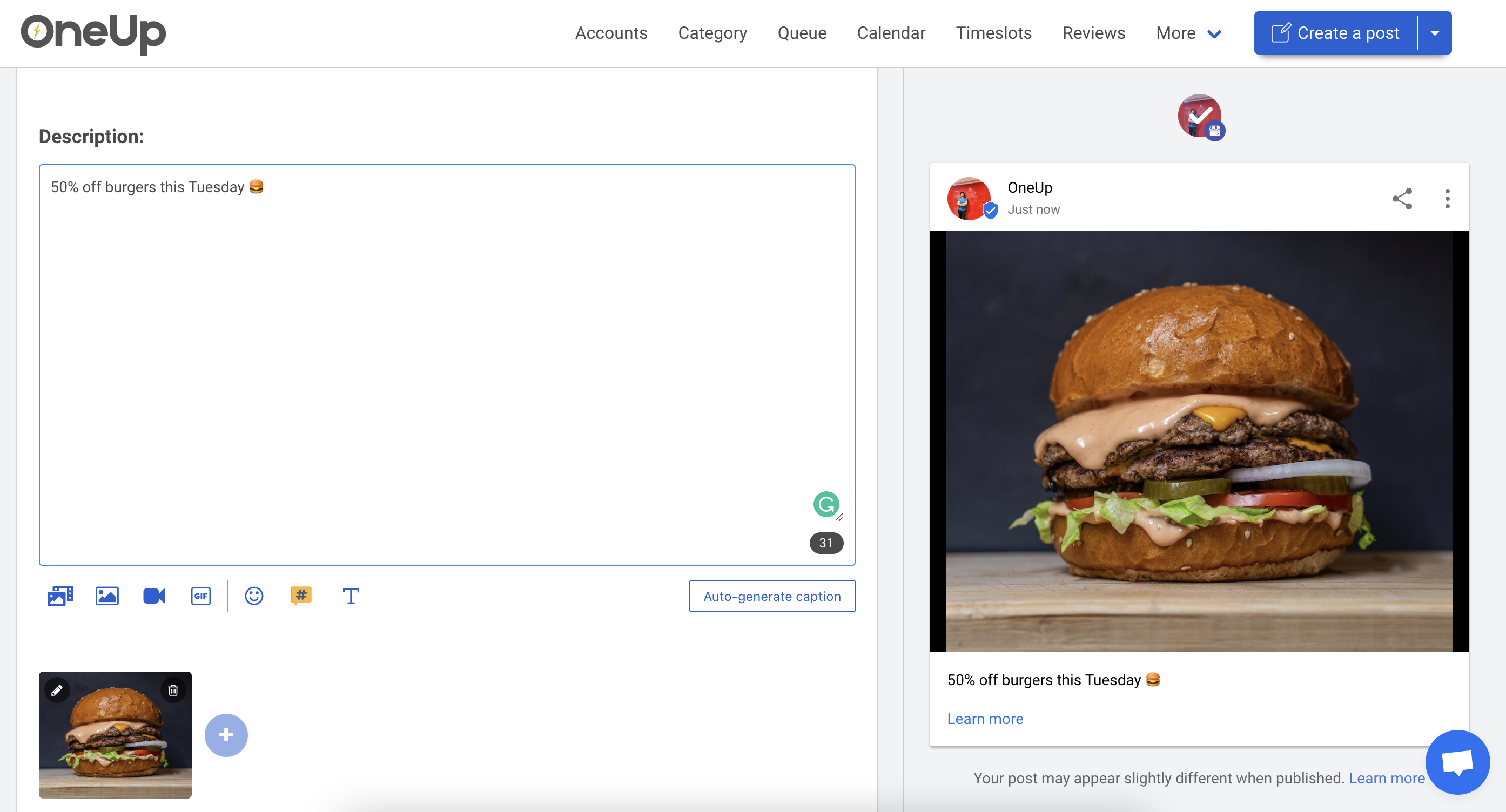
Create your post
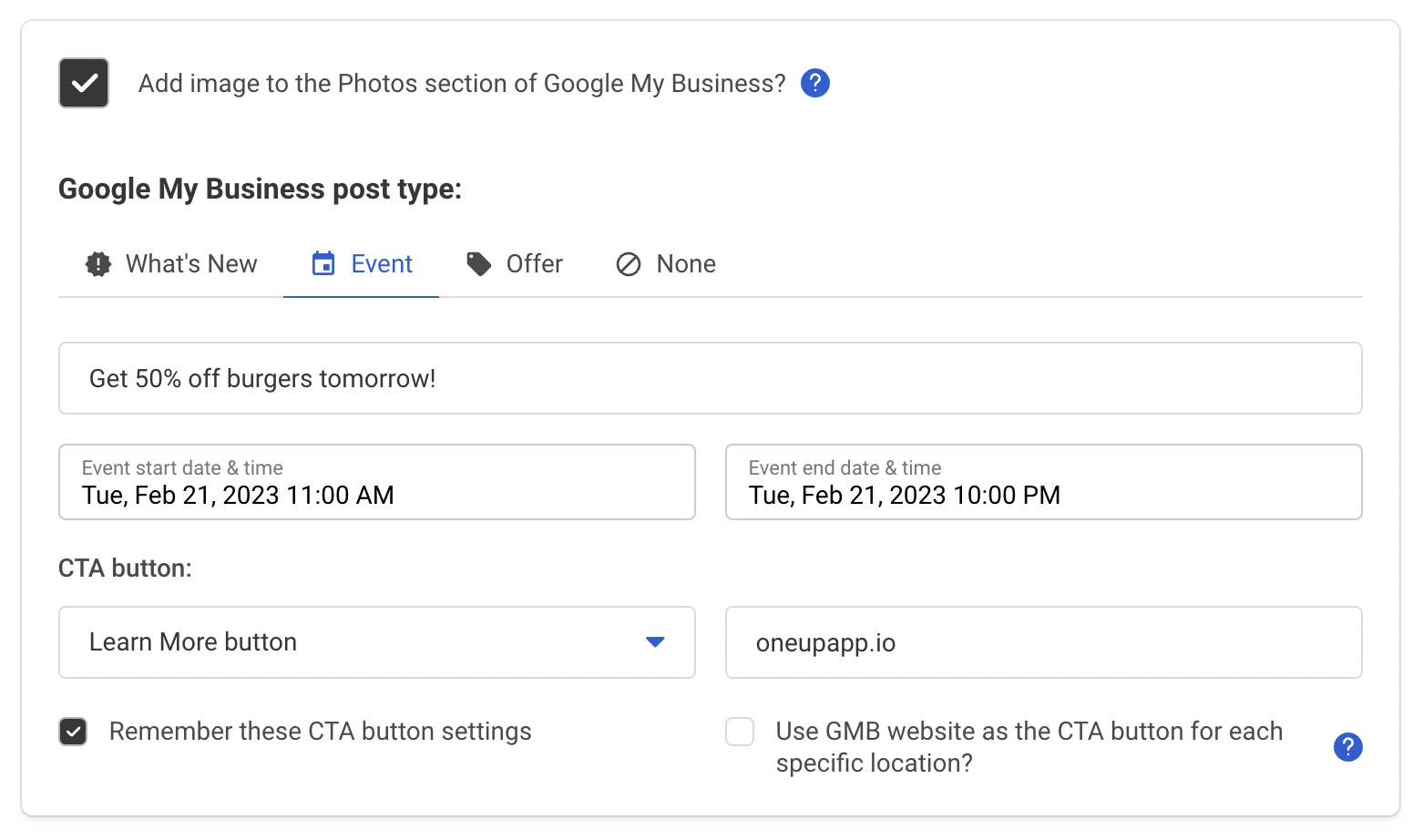
Add your CTA button
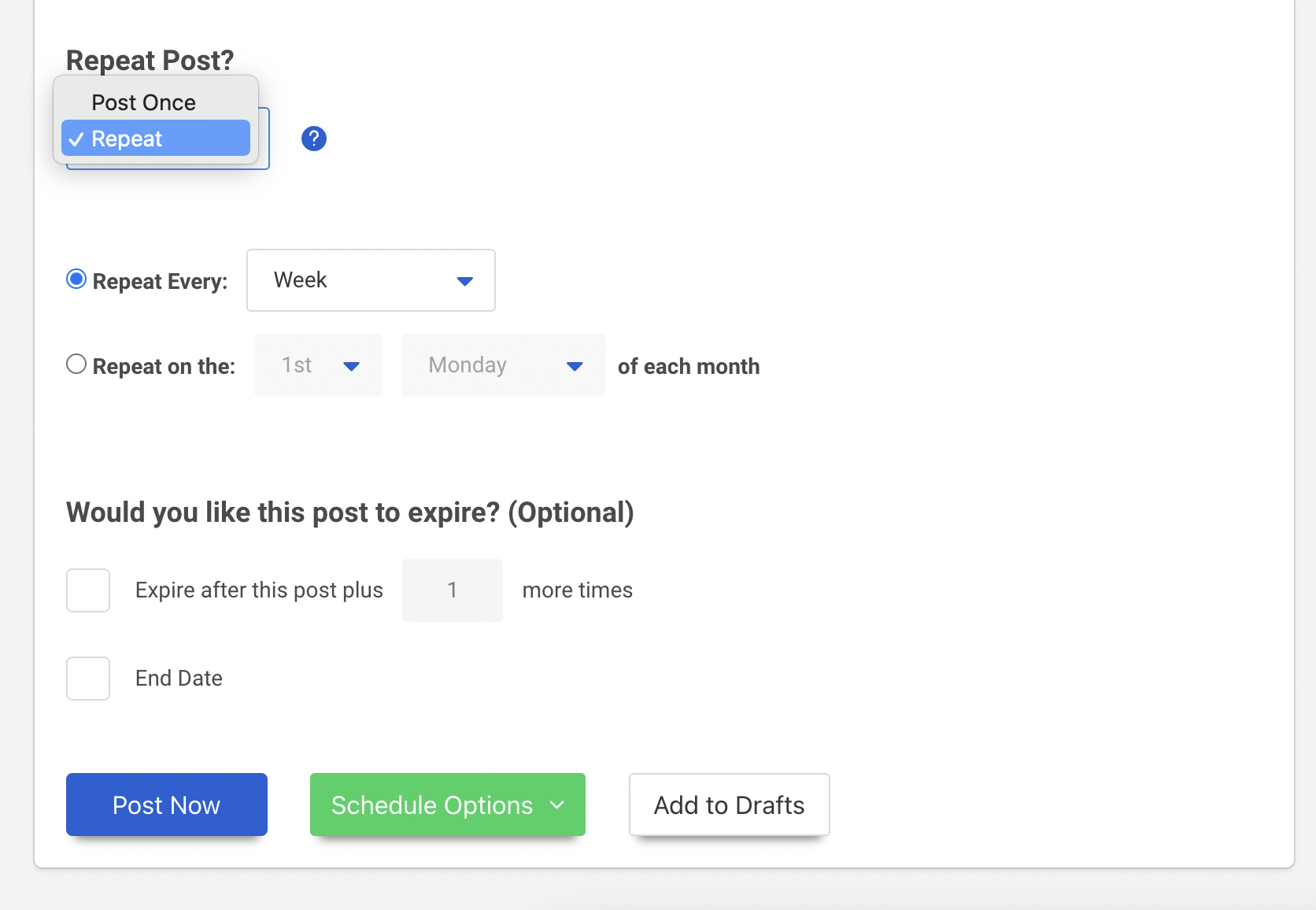
Choose whether you want it to post once or repeat
Post it now or schedule it for the future
Here are those steps with screenshots:
Using OneUp, first choose which Google My Business locations you want to post to. You can choose some or all of your locations; you just click to select which locations you want to post to:
NOTE: OneUp has an awesome Custom Fields feature, where you can insert dynamic info (such as the unique address or unique hours of each location) into the specific post for each Google location.
Then you add your post, with whatever image you would like:
Then choose your Google post type (Update, Event, and Offer posts are supported), and choose your CTA button:
You can even choose to have your Post’s image added to the Photos section of each Google Business Location.
Then you choose whether you want it to be posted once, or whether you want the post to automatically repeat. For example, this post will repeat every week:
This allows you to reap the benefits of being active on Google My Business, without the hassle of constantly going back in every week to manually post something once your post expires.
Then to finish up, you choose whether you want it to be posted now, or scheduled for a date in the future.
And once again, the best part is that OneUp allows you to post UNLIMITED Google Business locations for a fixed price 🤓
OneUp makes it easy to post to multiple Google My Business locations at the same time.
In addition to Google My Business, OneUp supports Facebook, Instagram, TikTok, YouTube, X, Threads, LinkedIn, and Pinterest.
This post goes over how to add a Facebook Story to your Facebook Business page from a computer.
Facebook Stories are becoming increasingly popular, with Facebook doing their best to push Stories by putting them at the very top of everyone’s News Feed.
To take advantage of this newer channel, many businesses are looking to publish Facebook Stories to their Facebook Business page.
How to add Facebook Stories to your Business page
To add a Facebook Story to your Business page, it is quite simple.
1. If you are on a computer, simply click the blue “+” next to your businesses main profile picture.
2. Next, create your Facebook Story. At the bottom of this popup box, you will see the options to post this to “Your Page’s Story” and “News Feed” already checked. If you do not want this Facebook Story also published as a normal post on your page, uncheck “News Feed”.
3. Click Share Now.
That’s it. Once posted, your page’s Facebook Story will be public for 24 hours, and will be shown above the News Feed to your followers.
Need a way to schedule and automate your social media posts?
OneUp is a social media scheduling tool that allows you to schedule and automate your posts on Facebook, Twitter, YouTube, Threads, Google My Business, Pinterest, LinkedIn, and Instagram.
Posting to multiple pages – For people who are posting to multiple pages or more than one social network at a time, OneUp makes it easy to post to FB Pages and Groups, LinkedIn profiles and pages, and Twitter accounts, Pinterest, Google My Business, and Instagram all at once.
Repeating post – OneUp gives you the option to repeat your posts automatically. This allows you to resurface old posts that otherwise would have never been seen again. Also for anyone that has a Facebook Group with daily themes that repeat every week (such as “Make it happen Monday”), OneUp makes it easy to entirely automate this.
RSS feed automation – If there are any blogs, publications, podcasts, or YouTube channels that put out good content consistently, you can add the RSS feed links in OneUp, then whenever new content is posted from those places, it is automatically shared to the pages you select.
Chrome Extension – Using the OneUp Chrome extension, you can easily schedule many images at once from any website, such as sunsets for example. You can choose which images from the website you want to post to social media, bulk update or individually update the descriptions and links for each post, then schedule them to be posted with a set interval (such as every 60 minutes), or choose custom dates and times for all of them.
Customizable UTM parameters – OneUp lets you customize UTM parameters so you can keep track of how your links are performing in Google Analytics.
Link Shortening – Connect your Bitly account and OneUp will automatically shorten any links and allow you to track clicks through Bitly.
This post goes over how to schedule Facebook Stories.
OneUp allows you to schedule Facebook Stories directly to your Facebook Page:
OneUp also shows you a post preview of how your Facebook Story will look once it’s posted:
In addition to Facebook Stories, OneUp also supports scheduling Facebook posts and Facebook Reels, Instagram (posts, Stories, and Reels), YouTube (including Shorts), TikTok, Pinterest, X, Threads, and Google Business Profiles.
Try it out scheduling your Facebook Stories on OneUp
IMPORTANT NOTE: You can only schedule posts to multiple Facebook Groups at the same time if you are the Admin of EVERY SINGLE one of those Facebook Groups.
So you are looking to post to multiple Facebook Groups at the same time.
The first question is, are you trying to post to multiple Facebook Groups that you are only a member of?
Or are you trying to post to multiple Facebook Groups that you are the Admin of?
Posting to multiple Facebook Groups at the same time that you have joined and are only a member
If you are trying to post to multiple Facebook Groups where you are NOT the Admin, but are just a member, there is no Facebook-approved tool to do this.
Any tools that say they support this are violating Facebook’s terms of service, and will most likely result in your account getting temporarily or permanently banned.
I would recommend either posting manually in the Facebook Groups yourself, or hiring a Virtual Assistant (VA) to do this for you.
Posting to multiple Facebook Groups at the same time that you ARE the Admin of
OneUp is a Facebook-approved social media scheduling tool that allows you to schedule posts to multiple Facebook Groups at the same time (in addition to Facebook Pages, and other social networks).
HOWEVER, to use OneUp with a Facebook group, you MUST be one of the Group Admins. Facebook does not allow scheduling tools to post to Groups unless you are an Admin.
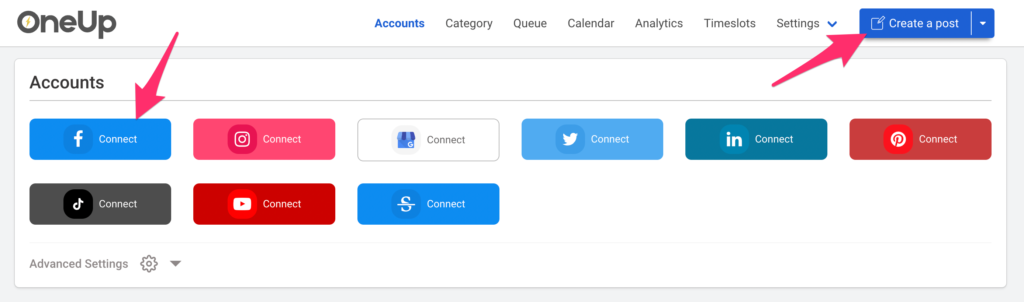
Using OneUp, you can connect your Facebook Groups and Pages by clicking the Facebook Connect button, then click “Create a post”:
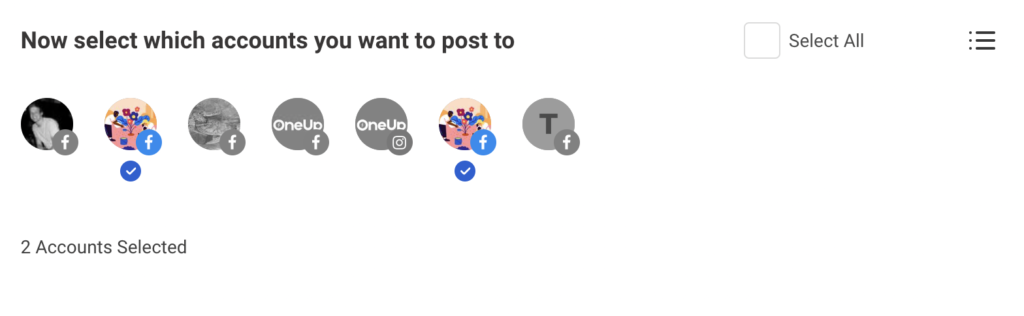
First select which of your Facebook Groups (and/or Facebook Pages) you want to post to:
You can post to multiple social accounts at the same time
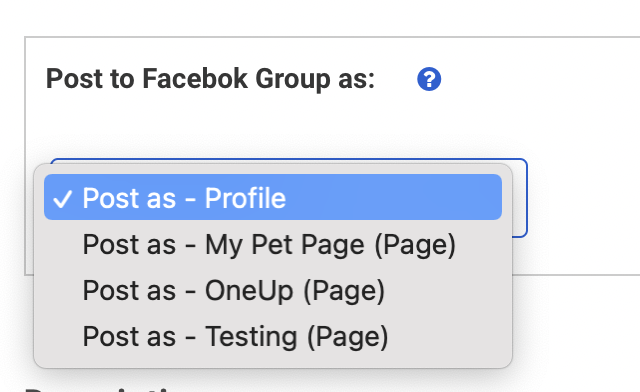
If you select a Facebook Group, you will see the option to post to the Facebook Group as either your personal profile, or post to the Facebook Group as your Facebook Page. (Note: Your Facebook Page MUST be an Admin of your Facebook Group to post as your Page to the Group)
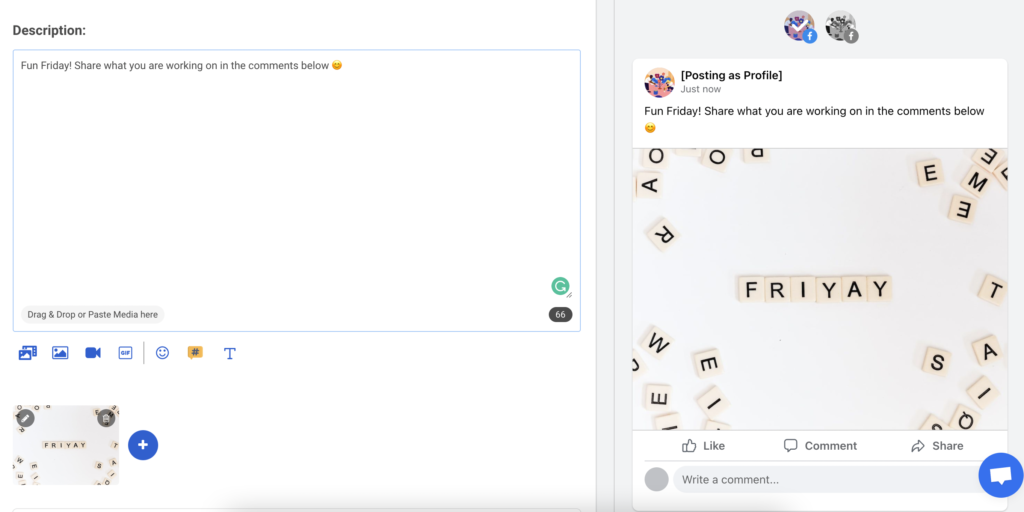
Next, create your post:
You can add image(s), a video, or GIF to your post. OneUp has both a Canva integration and an Unsplash integration, so you can find and create images for your post, right inside of OneUp 🤓
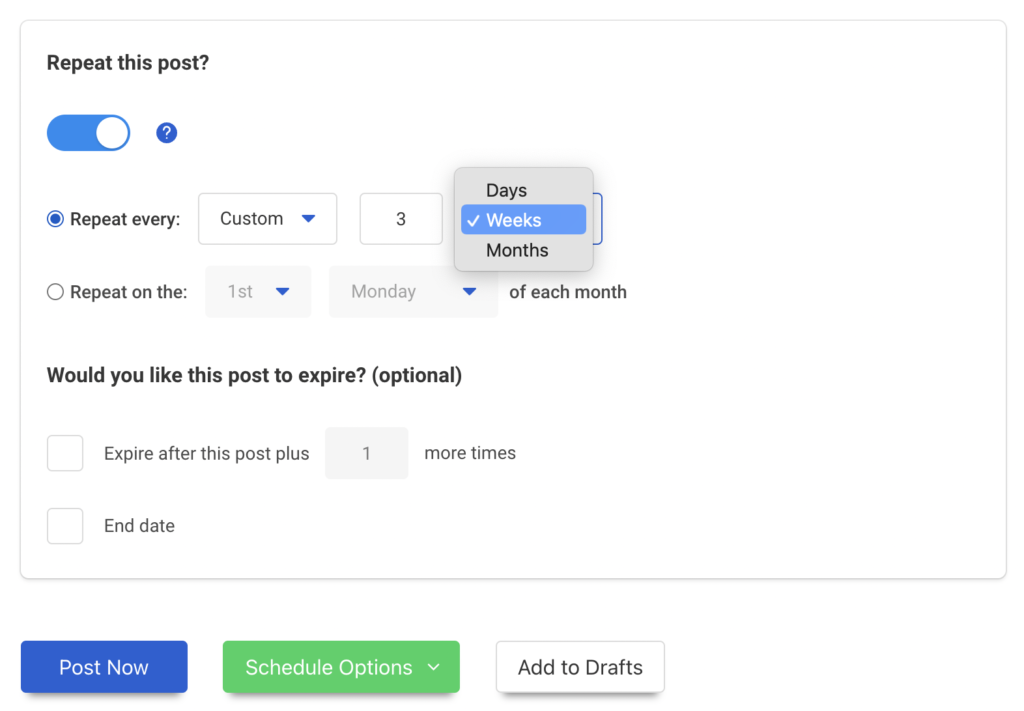
You can set your post to publish once, or have it automatically repeat at whatever interval you choose:
This post will automatically repeat every 3 weeks
Once done, you can either post it now to your multiple Facebook Groups (and Facebook Pages), schedule the post for the future, or save it to your Drafts folder.
Try scheduling your Facebook Group posts with OneUp
To schedule a WhatsApp message, you can use a WhatsApp message scheduling tool like OneUp.
OneUp currently supports scheduling Instagram Stories and Reels, TikTok videos, and YouTube Shorts (in addition to Facebook, X, Pinterest, LinkedIn, Threads, and Google Business Profiles).
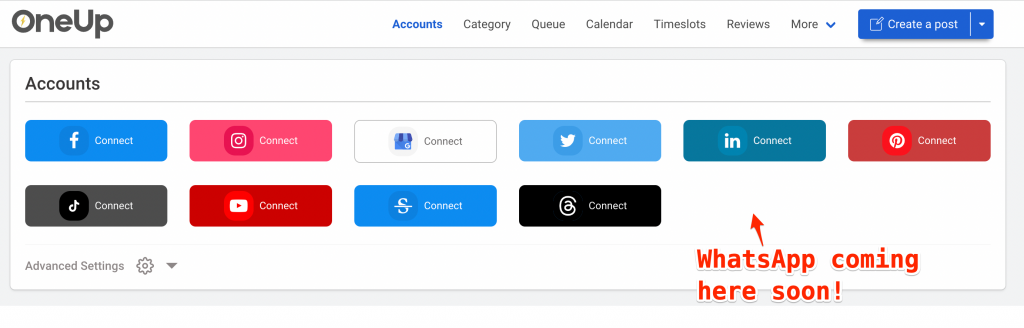
We will be adding the ability to schedule WhatsApp messages to OneUp in the near future.
If you are interested in scheduling WhatsApp messages with OneUp, please send me (Davis, the co-founder of OneUp) an email at davis@oneupapp.io with the subject line “WhatsApp“.
We will notify you as soon as scheduling WhatsApp messages is supported in OneUp 😊 (and we promise we won’t send you anything else).
The more people that email me about it, the more resources we will put into getting it done faster.
This post goes over what the best image size is for Google My Business (GMB) posts.
Join the Local SEO Community (free to join, over 2,800 members) for in-depth discussions on all things local SEO and Google My Business.
Google My Business posts are a great way to stand out from the competition and help your SEO.
However, many images in GMB posts seem to get cut off when viewed on the search results page.
What Google My Business post image size is best?
If you are posting from the GMB dashboard, the best image size for Google My Business (GMB) posts is 1200 x 900 pixels, a 4:3 image ratio.
However, you can scroll down to learn how to get images with different dimensions to post to Google My Business without getting cut off.
Here is a 1200 x 900 image:
And here is what that image looks like in a Google My Business post at the bottom of the GMB listing:
You’ll notice that the bottom part of the image gets cut off in the GMB post:
However, when the post is clicked on and the image is expanded, it shows the full image:
Keep this in mind when you are publishing Google My Business posts that might have important parts of the image in the lower section of the image.
I have a lot of images that aren’t 1200 x 900 pixels though?
If you publish your Google My Business posts from OneUp, the GMB post scheduling tool, most image sizes publish completely. (more on OneUp at the bottom)
For example, here is a 1200 x 628 image:
If you post it from the GMB dashboard, it gets cut off significantly:
However, if you publish the same image through OneUp, the full image posts perfectly:
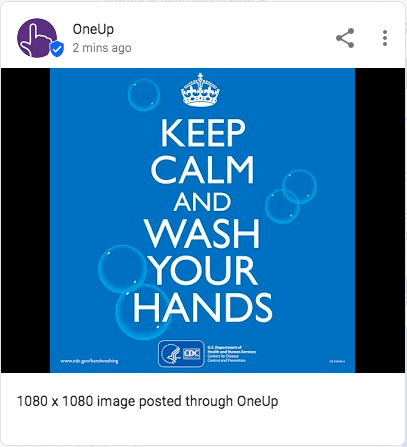
Let’s take another example with this 1080 x 1080 image:
When you post this image directly from Google My Business, it cuts off a significant portion from both the top and bottom of the image:
However, that same image posts fully when published through OneUp:
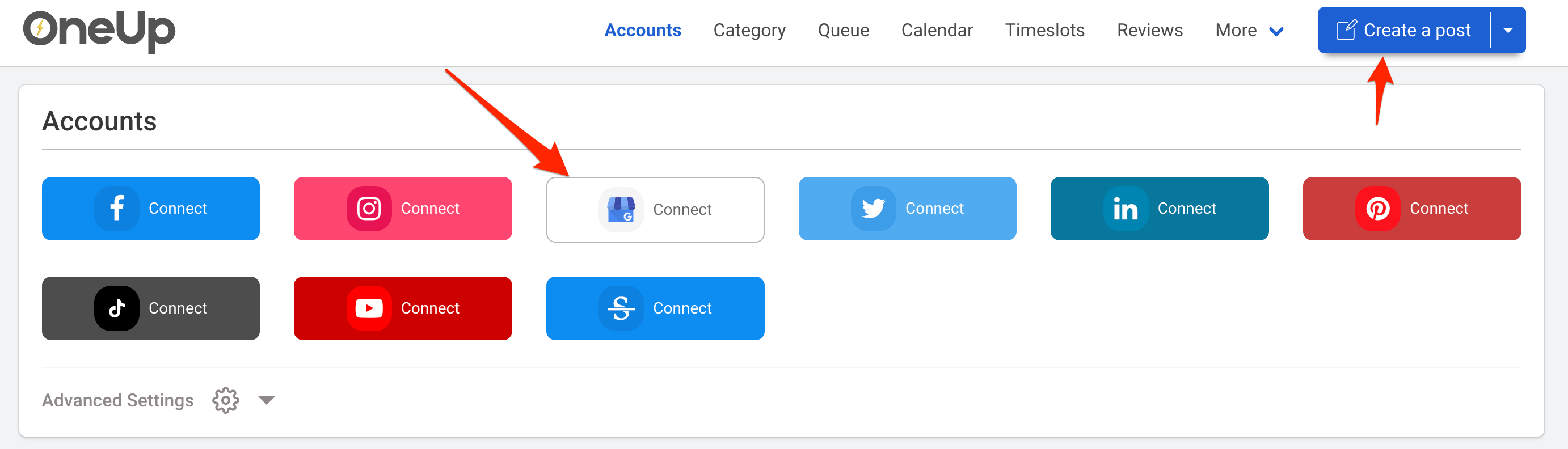
The process is simple. Just connect your Google My Business account on the Accounts page:
Then click “Create a post”.
Then choose which of your Google locations you want to schedule your GMB post to, optionally adding any link or image to the post:
OneUp has a post preview so you can see how your post will look once published.
Then choose your Google post type and add your Call-To-Action button:
OneUp also allows you to choose whether you would like to “Add the image to the Photos section of Google My Business”.
In addition to just scheduling posts, OneUp allows you to set GMB posts to automatically repeat at custom intervals — such as once a week or once a month:
This allows you to reap the benefits of being active on Google My Business, without the hassle of constantly going back in every week to manually post something once your post expires.
Then choose to post it now, or schedule it for a date in the future.
If you are tired of GMB cutting off parts of your images, try OneUp for free at oneupapp.io
PS OneUp also supports replying directly to Google reviews:
You can even click the “Suggest a reply” button and get an AI-powered suggested reply (which you can edit to your liking before submitting). And the suggested replies work with reviews in ANY language:
What is Threads character limit for each post? The character limit on Threads is 500.
However, if you need more than 500 characters, you can always add another post to your thread:
You can exceed the 500 character limit by adding another post to your Thread
Does Threads support images? Yes, Threads supports images in posts.
What is Threads image limit? You can add up to 10 images on each post in Threads.
Does Threads support videos? Yes, Threads supports videos in posts.
What is Threads video limit? You can add up to 10 videos on each post in Threads.
Does Threads supports GIFs? Yes, Threads supports GIFs.
What is Threads GIF limit? You can add up to 10 GIFs on each post in Threads.
Can I combine images and videos in the same post on Threads? Yes, images and videos can be combined in the same post on Threads. You can have up to 10 attachments, whether they be images or videos.
Can I combine images, videos, and GIFs in the same post on Threads? Yes, images, videos, and GIFs can be combined in the same post on Threads. You can have up to 10 attachments, whether they be images, videos, or GIFs.
This post goes over how to schedule and publish posts on TikTok with OneUp. And yes, they post DIRECTLY (no need for mobile notifications).
TikTok is one of the fastest-growing social networks. TikTok is a social media platform where people can watch, create, and share video content in real-time.
However, in the TikTok mobile app, there is no way to schedule a TikTok post for the future. You can only post your TikTok videos at that moment.
If you want to schedule TikTok posts for the future, you have 2 options:
Use TikTok’s scheduler on a web browser (not in the mobile app, and it only works with Business or Creator accounts), OR
Use a 3rd-party TikTok scheduling tool (works with all account types)
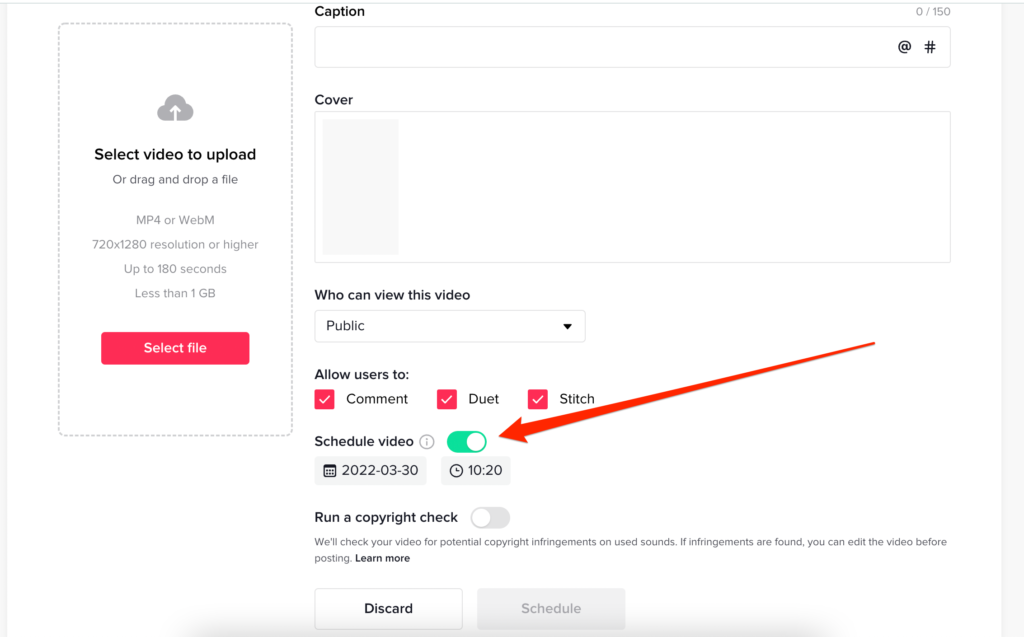
If you use TikTok’s scheduler on a web browser, you will see the “Publish at a later date” option while creating your post, but ONLY for Creator and Business accounts (not Personal accounts):
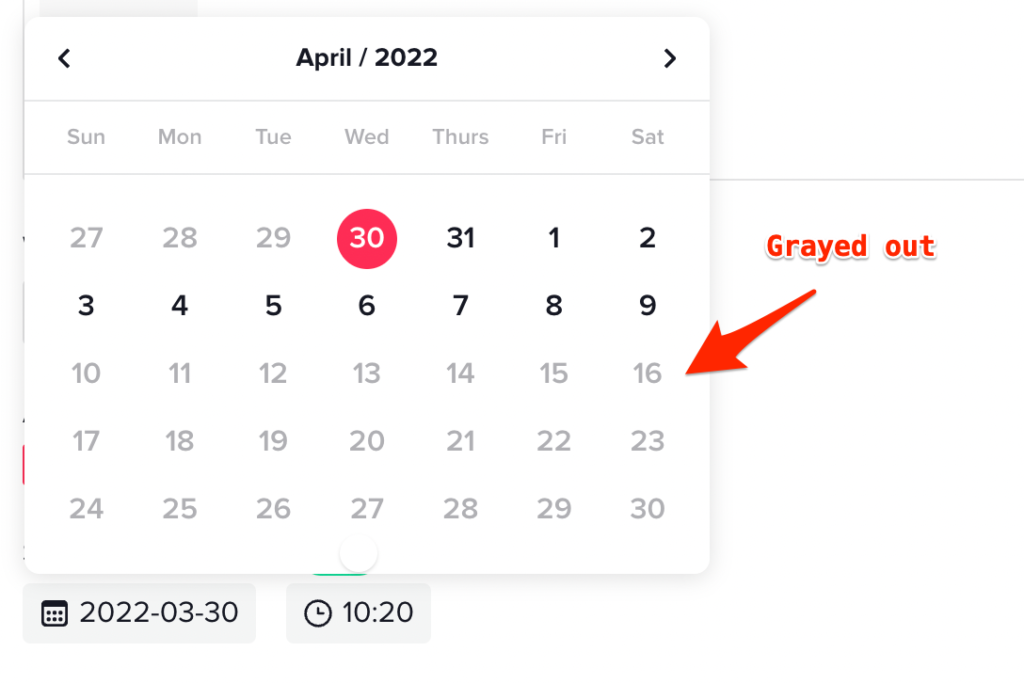
However, TikTok’s scheduler only allows you to schedule videos up to 10 days in advance. If you try to choose a date more than 10 days into the future, it shows those dates as grayed out:
If you want to schedule TikTok videos as far into the future as you’d like, you can schedule TikTok videos using a 3rd-party TikTok scheduling tool like OneUp.
Using OneUp, you can schedule TikTok posts, and it works with all TikTok account types (Personal, Creator, or Business accounts).
Here is how scheduling TikTok posts with OneUp works 👇
How to schedule TikTok posts
Connect your TikTok account on the Accounts page of OneUp
Click “Create a post”
Select which TikTok account you want to post to (if you have more than 1 TikTok account connected)
Upload the video you want to schedule to TikTok
Schedule your TikTok video
Here are those steps with screenshots:
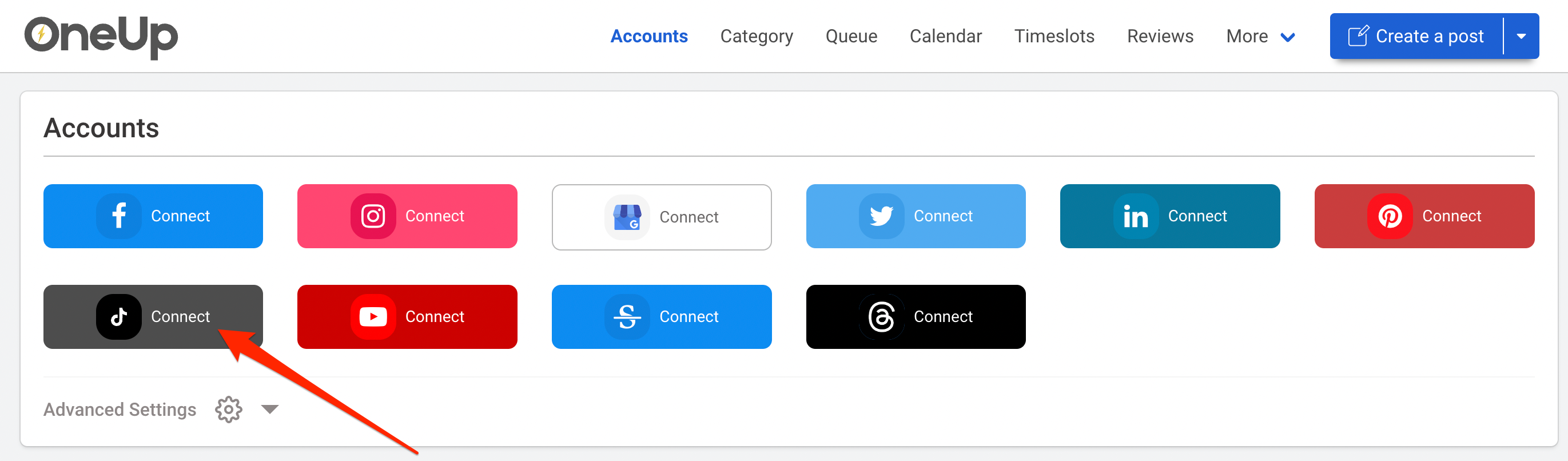
Connect your TikTok account on the Accounts page:
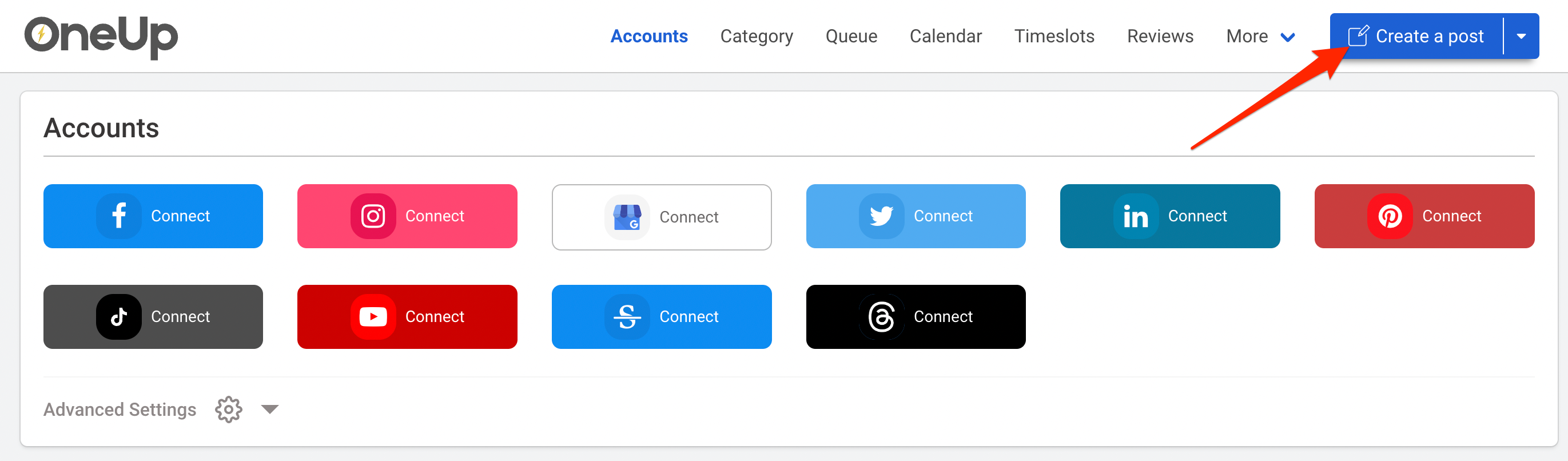
2. Click “Create a post”:
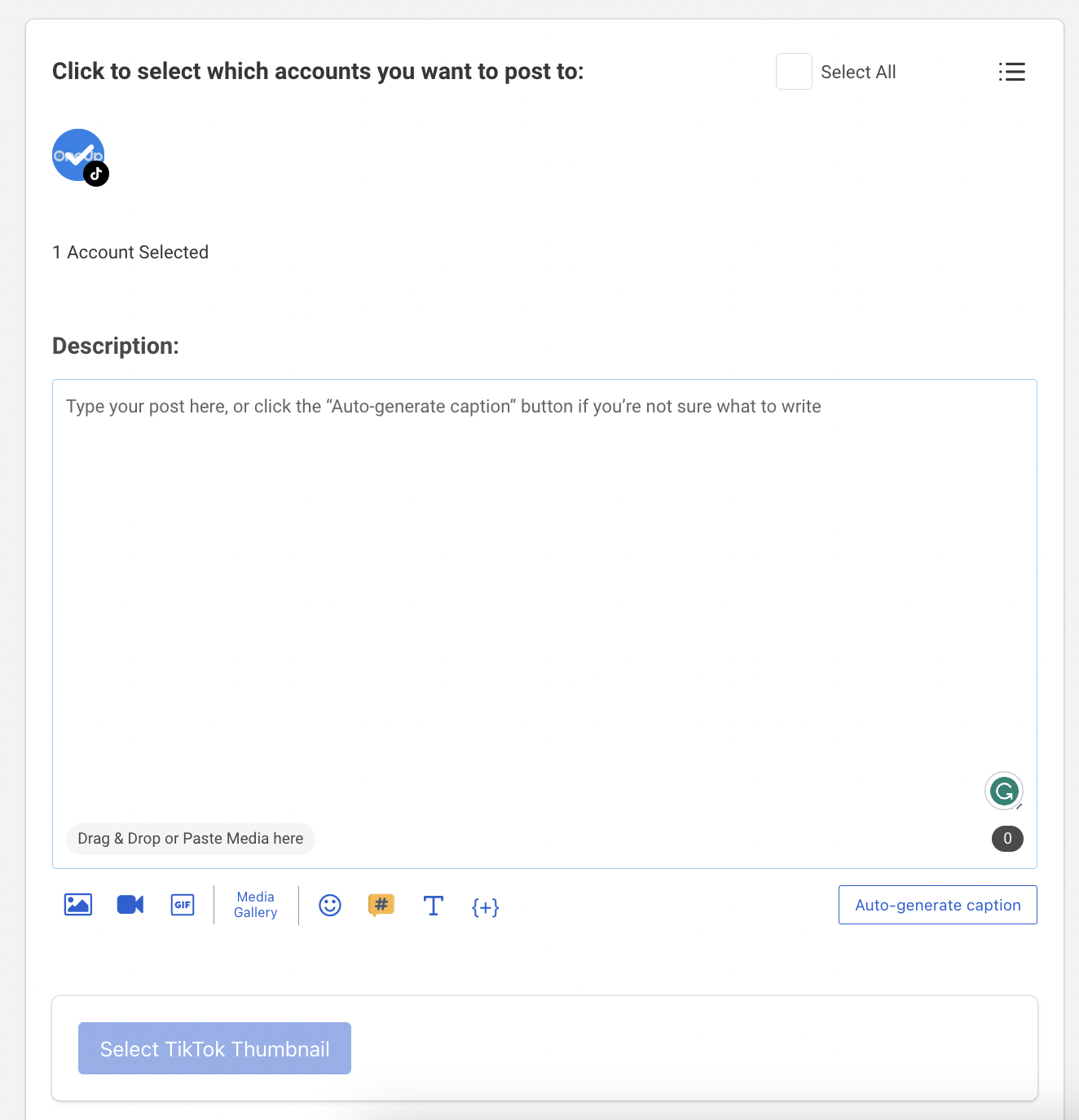
3. Select which TikTok account you want to post to (if you have more than one TikTok account connected):
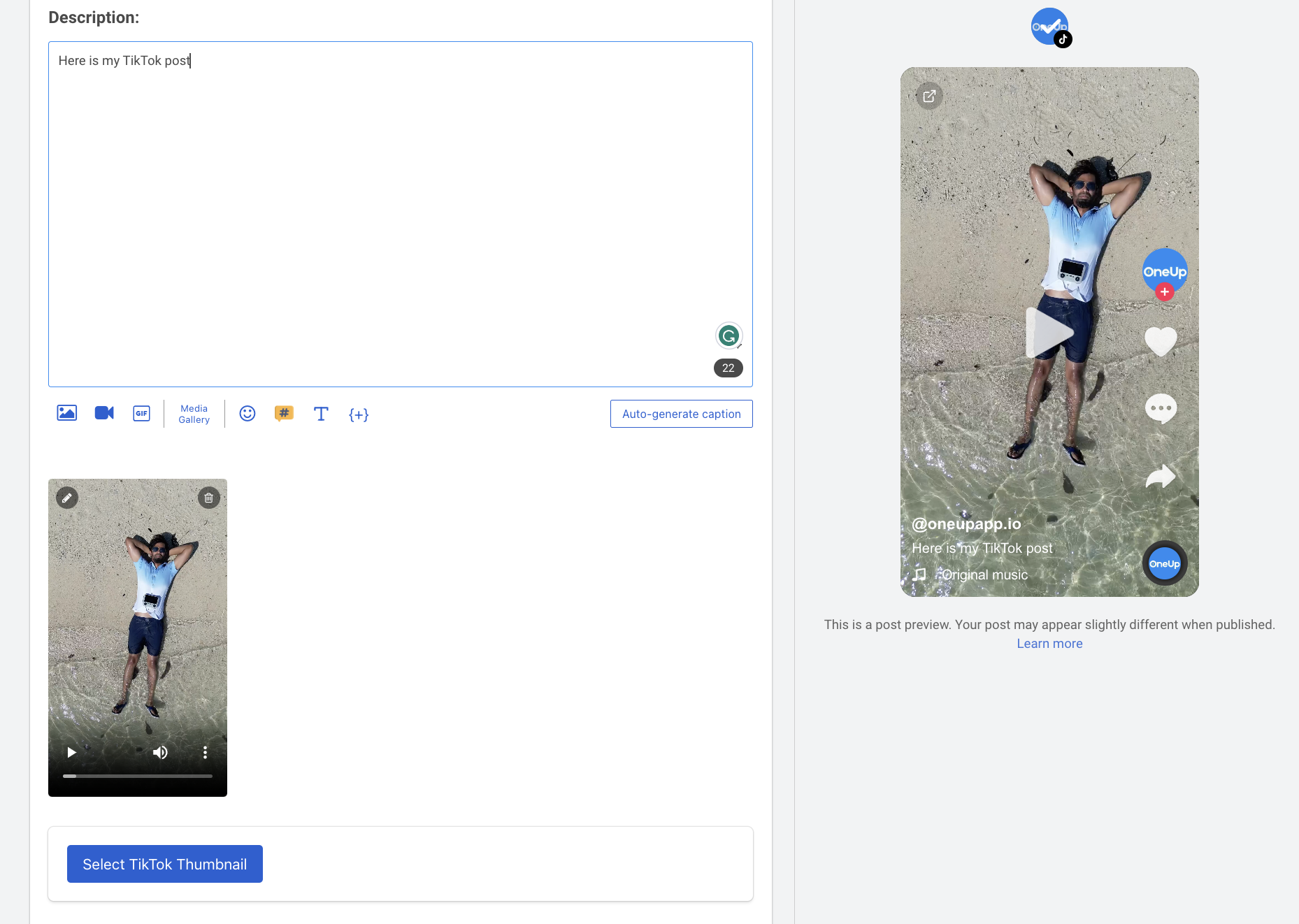
4. Upload the video you want to schedule to TikTok. OneUp also supports choosing your TikTok thumbnail:
OneUp has a post preview so you can see how your post will look on TikTok once it’s published.
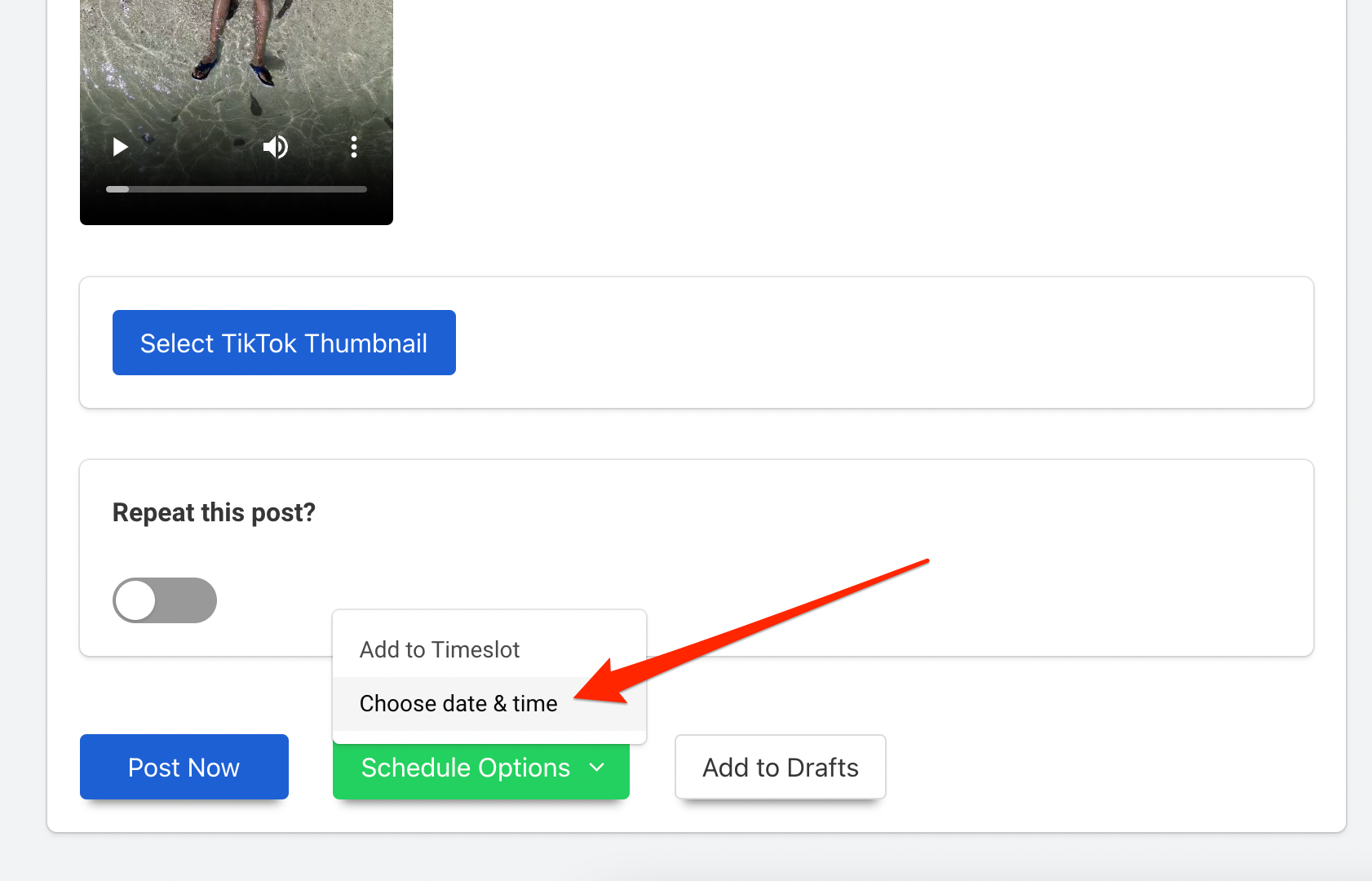
5. Schedule your TikTok video:
That’s it! Your video will then post to TikTok DIRECTLY (no need for mobile notifications).
In addition, OneUp also supports Twitter, LinkedIn, and Pinterest, which means that a single video can be posted to TikTok, Instagram Reels, Facebook Reels, YouTube Shorts, Pinterest, LinkedIn, and Twitter – all at the same time with OneUp!
Schedule your TikTok posts more than 10 days into the future with OneUp 😊